Zepliner Support
Android
Install and activate your eSIM on Android.
Briefing
Please complete the installation while you still have a stable Wi-Fi connection. Your phone needs internet access to download and add the eSIM profile, so doing this in advance makes the setup much smoother.
During setup, do not lock your phone, leave the settings screen, or switch apps for too long. Interrupting the installation can cause the setup to fail or pause.
In most cases, the correct order is:
- Install the eSIM first while you still have internet access.
- Activate and use it when you arrive at your destination.
Installing before travel helps you avoid last-minute setup issues when you land.
Before you start
Before installing your eSIM, please check the following:
- Your device supports eSIM
- Your phone is carrier-unlocked
- You are connected to a reliable Wi-Fi network
- Your battery is sufficiently charged
- Your Android version is reasonably up to date
- Your home SIM stays inserted and active unless your phone tells you otherwise
It is also helpful to keep your purchased package visible in the app so you can confirm the correct plan during setup.
Install the eSIM
Do these steps while connected to Wi-Fi.
- Open the Zepliner app and go to My eSIMs.
- Tap the eSIM you purchased.
- Tap Install eSIM.
- Follow the on-screen instructions shown on your phone.
- When your device asks to add the cellular plan, confirm and continue until the installation is complete.
- When prompted, give the eSIM a clear label such as Travel data, Zepliner, or the name of your destination.
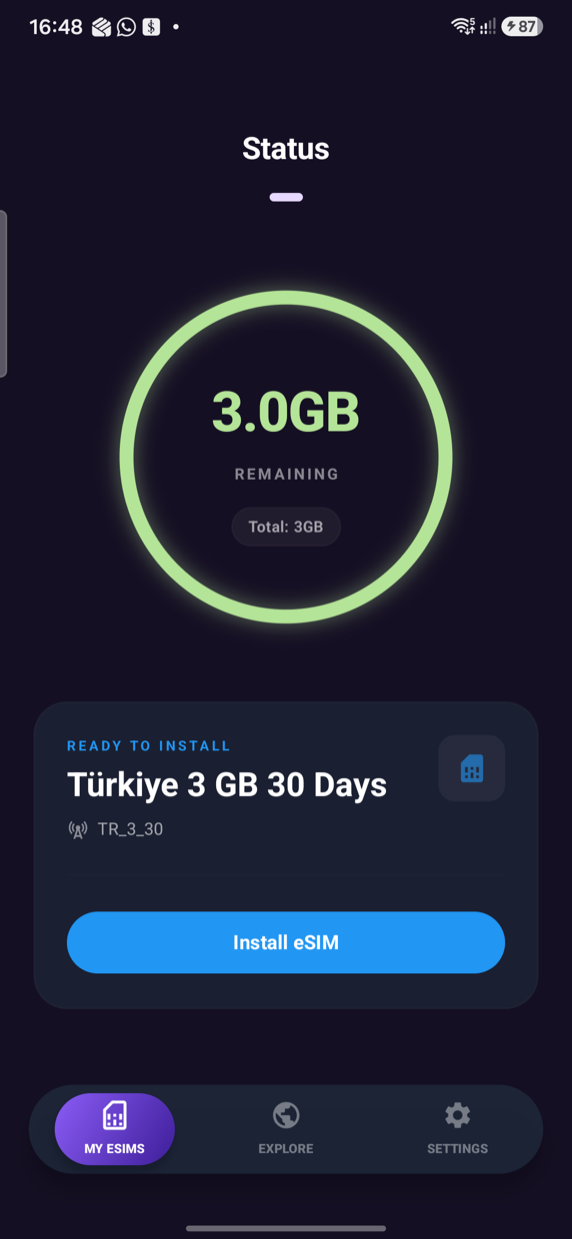 Tap Install eSIM when your package is ready
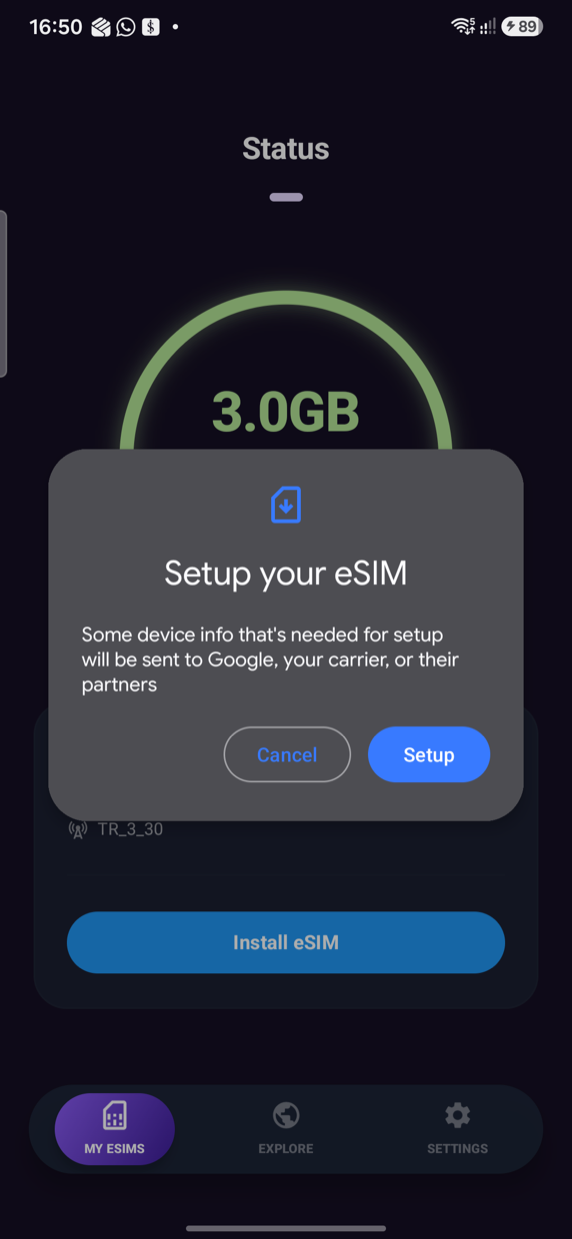 Confirm Setup your eSIM
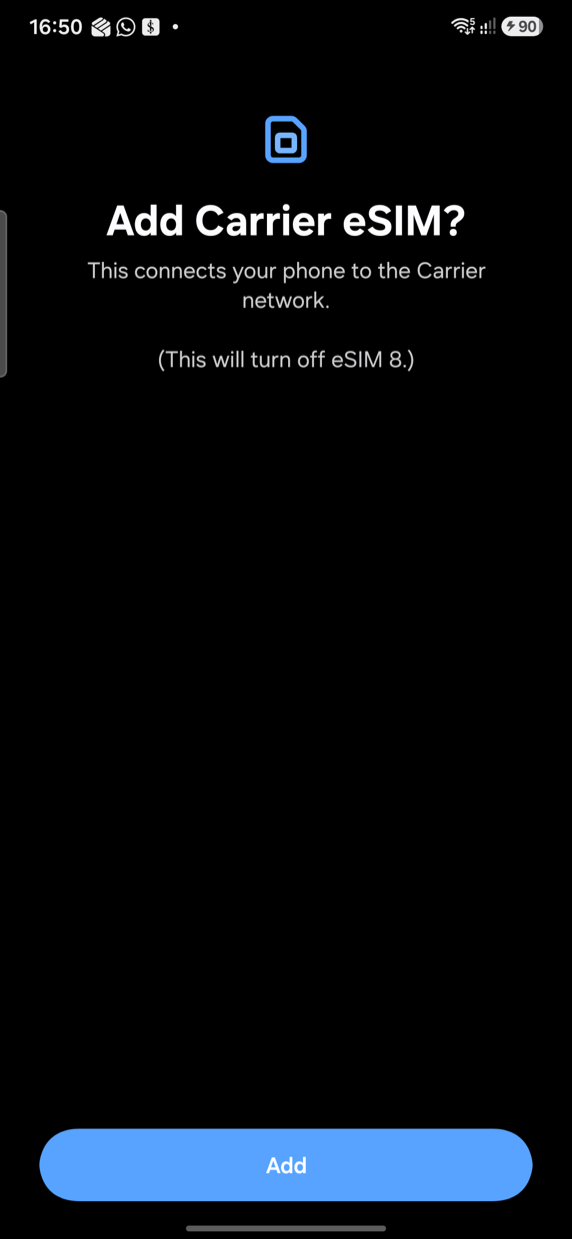 Confirm Add carrier eSIM
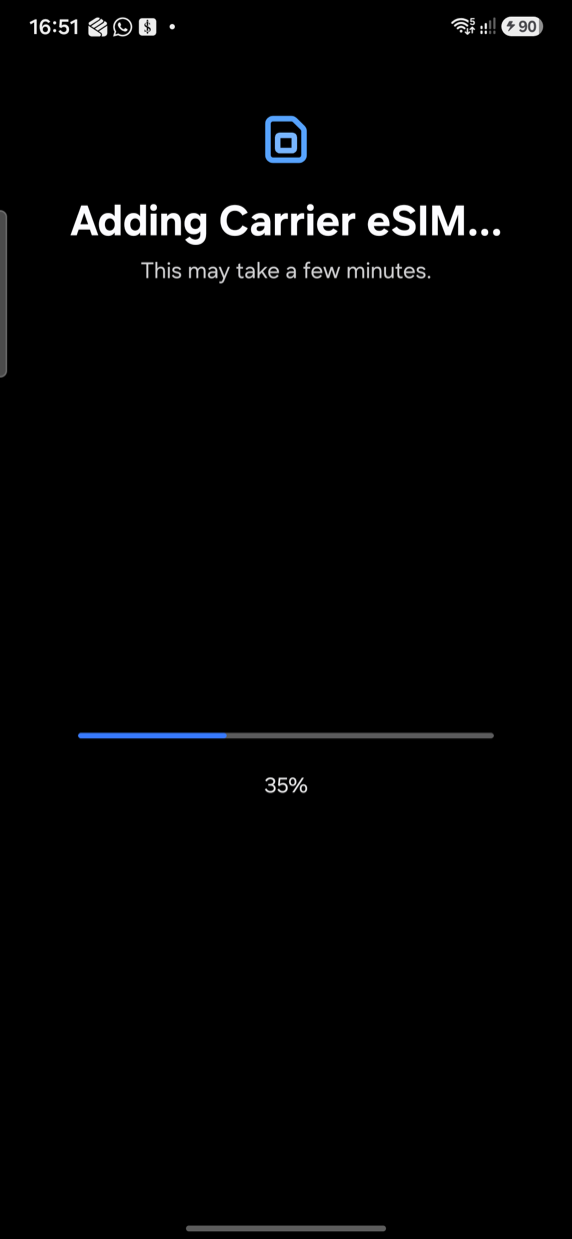 Keep the phone unlocked while the carrier eSIM is added
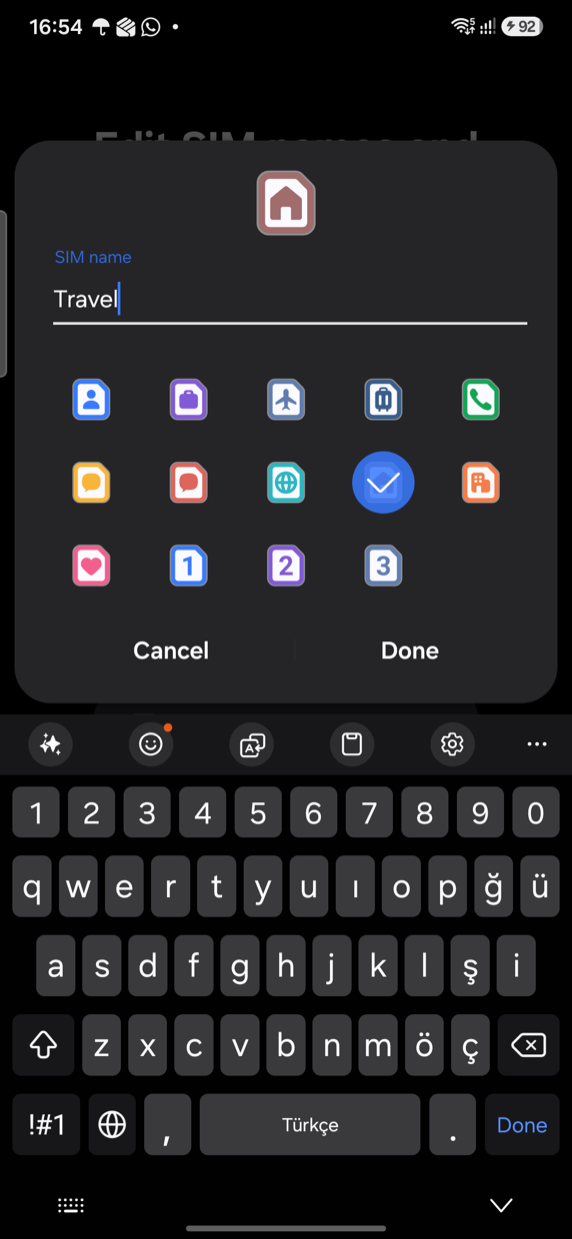 Give the eSIM a clear name such as Travel
A clear label makes it much easier to manage your lines later, especially if you use your regular SIM for calls and your Zepliner eSIM for data.
During installation
- Keep your phone unlocked
- Stay on the setup screen until the process finishes
- Do not remove your physical SIM unless your phone specifically requires it
- Do not worry if the eSIM does not connect immediately after installation
In many cases, the eSIM is successfully installed but will only begin working once your device reaches the supported destination and connects to a local partner network.
After installation
Once the installation is complete, the eSIM should appear in your phone's SIM Manager or Connections settings. At that point, it is added to the device and ready to be used later.
Activate the eSIM
When you arrive at your destination, activate the eSIM by adjusting your mobile settings.
- Open your phone's SIM Manager, Connections, or Mobile Data settings.
- Select the line labeled Zepliner or Travel data.
- Set this line as the mobile data line.
- Turn Data Roaming ON for the Zepliner line.
- Keep Data Roaming OFF on your home line.
- Wait a moment for the network to register.
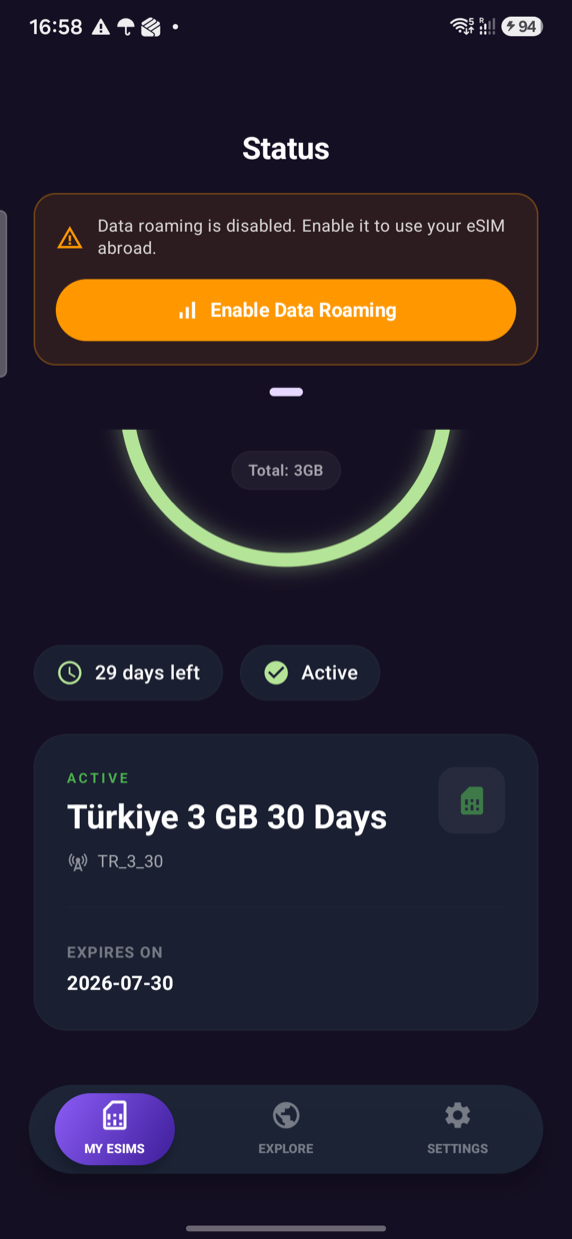 Zepliner can warn you when data roaming is disabled
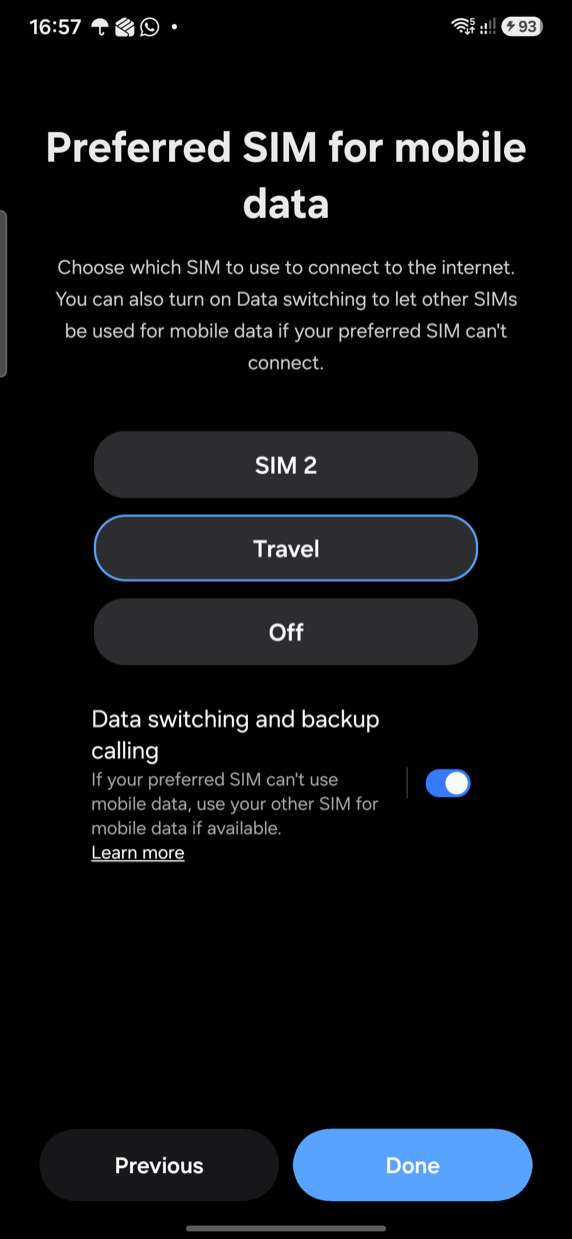 Select the Zepliner travel eSIM as the preferred SIM for mobile data
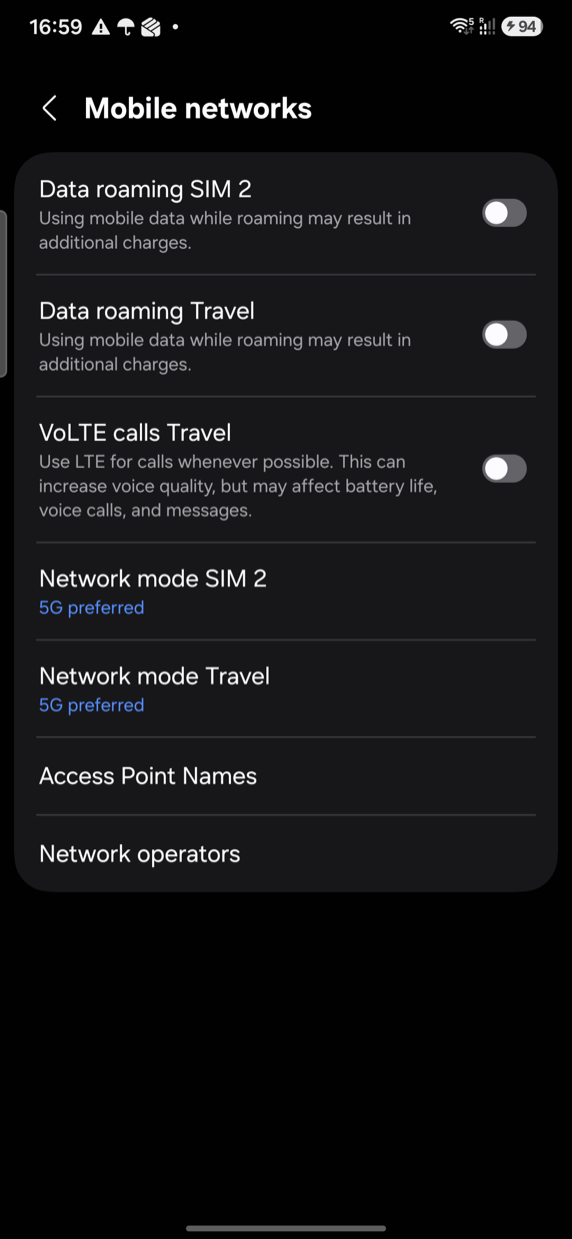 Turn on data roaming for the Zepliner travel eSIM only
Your phone may briefly show Searching, No Service, or similar messages before it connects. A short delay is normal while the device registers on a supported network.
Important
- Turn roaming on for the Zepliner eSIM only.
- Keep your home line as your preferred line for calls if needed, but use the Zepliner line for mobile data.
- Some devices allow separate settings for voice, messages, and data. The most important setting is that mobile data is assigned to the Zepliner eSIM.
- Leaving roaming enabled on your home line may cause unexpected charges from your primary carrier.
Recommended setup
For the most reliable experience, use this setup after arrival:
- Home SIM for calls or SMS if needed
- Zepliner eSIM for mobile data
- Data Roaming ON for the Zepliner eSIM
- Data Roaming OFF for your home SIM
This setup helps ensure your phone uses the travel plan correctly and avoids unnecessary roaming charges on your regular line.
What to expect after activation
After the correct settings are applied, your phone should connect automatically to a supported local network.
You may notice that:
- The signal appears after a short delay
- The network name may differ from your package name
- Data may begin working a little before the signal display fully updates
- Your phone may send you a notification about new mobile settings
If everything is configured correctly, you should be able to browse, use maps, messaging apps, and access the internet normally.
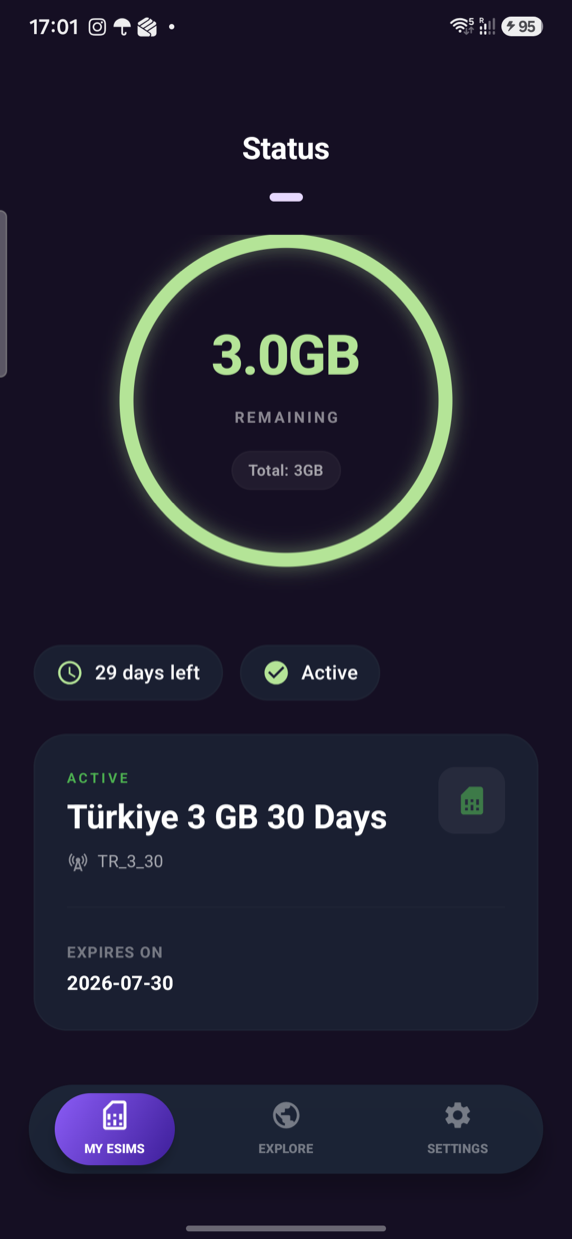 An active Zepliner package in the app
Plans & validity
Zepliner plans are sold as data + validity, for example 5 GB for 30 days or 10 GB for 30 days. Available packages vary by destination.
Your plan remains active until one of the following happens first:
- The included data is fully used, or
- The validity period expires
If you need more data, you can purchase another package from the product page.
Plan rules may differ depending on the package, so the app should always be treated as the best place to confirm your available balance and validity.
Good practices while traveling
To avoid common issues, these habits help a lot:
- Install the eSIM before departure whenever possible
- Double-check that the correct line is selected for mobile data
- Keep your home line's roaming off
- Restart the phone after landing if the connection does not appear quickly
- Update your apps over Wi-Fi when possible to save mobile data
- Monitor your remaining balance and validity in the app
If you rely on mobile data for maps, taxi apps, or airport communication, it is best to verify your settings right after landing.
Troubleshooting
No data
If your phone shows signal but the internet is not working:
- Make sure Mobile Data is set to the Zepliner eSIM
- Make sure Data Roaming is turned ON for the Zepliner eSIM
- Wait 1–2 minutes for the network to finish registering
- Toggle Airplane Mode on for 10 seconds, then turn it off
- Restart the phone if needed
No service
If the eSIM is installed but your phone shows No Service, Searching, or does not connect:
- Confirm you are already in a supported destination
- Wait a couple of minutes after arrival
- Toggle Airplane Mode for 10 seconds
- Restart the device
- Check whether your device has accidentally disabled the eSIM line
- Make sure your phone is eSIM-compatible and carrier-unlocked
eSIM installed but not working yet
This usually means one of the following:
- You are not yet in the supported country or region
- Mobile data is still assigned to your home SIM
- Roaming is off on the travel eSIM
- The phone needs a quick restart or network refresh
Slow connection
Connection quality can vary depending on signal strength, local carrier coverage, congestion, and indoor conditions.
If speeds seem poor:
- Moving to an open area
- Toggling Airplane Mode
- Waiting a few minutes
- Restarting the phone
Cannot find the eSIM in phone settings
If you installed it but do not see it:
- Look under SIM Manager, Connections, or Mobile Data settings
- Check whether it appears under the label you assigned during installation
- Reopen the Zepliner app and confirm the eSIM status there
Still need help?
If you are still having trouble, please visit Support.
When contacting us, include:
- Your destination
- Your device model
- A short description of the issue
- What you already tried
- Screenshots if possible
This helps us identify the issue much faster and guide you more accurately.