Zepliner Support
iPhone (iOS)
Install and activate your eSIM on iPhone.
Sign up & sign in
Getting started with Zepliner takes just a moment. Download the app from the App Store, then sign in with your Google or Apple account.
- Open the Zepliner app on your iPhone.
- Tap Sign in with Google or Sign in with Apple.
- If prompted, tap Continue to allow the sign-in.
- Choose or confirm your account.
- Tap Continue to complete sign-in.
Once signed in, you will land on the Status tab. This is your home screen where purchased eSIMs will appear later.
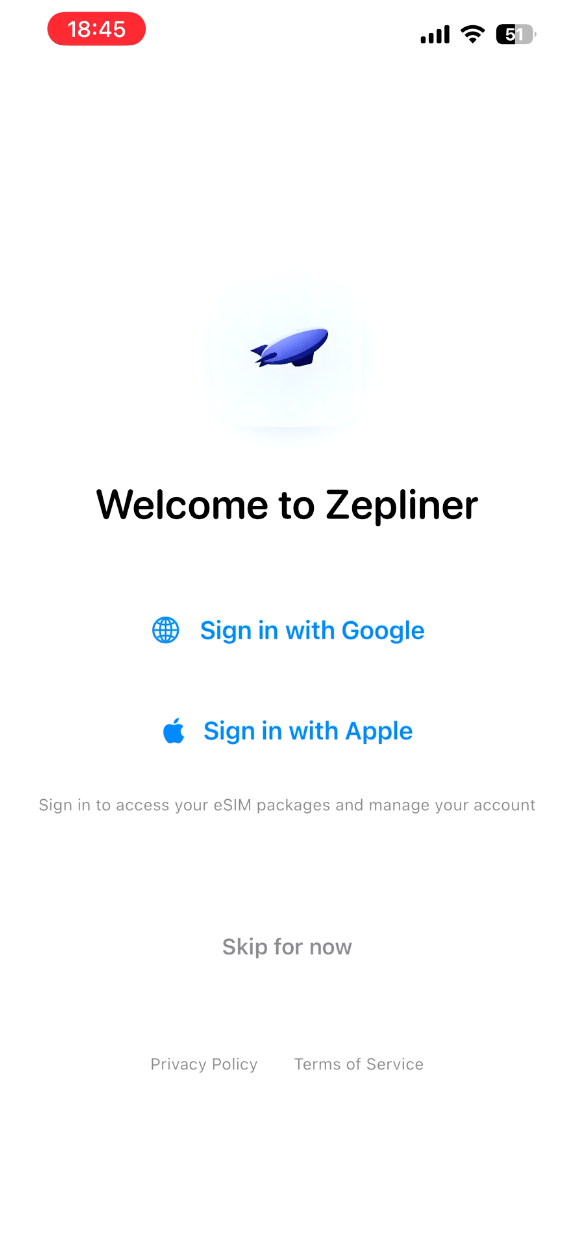 Open the Zepliner app
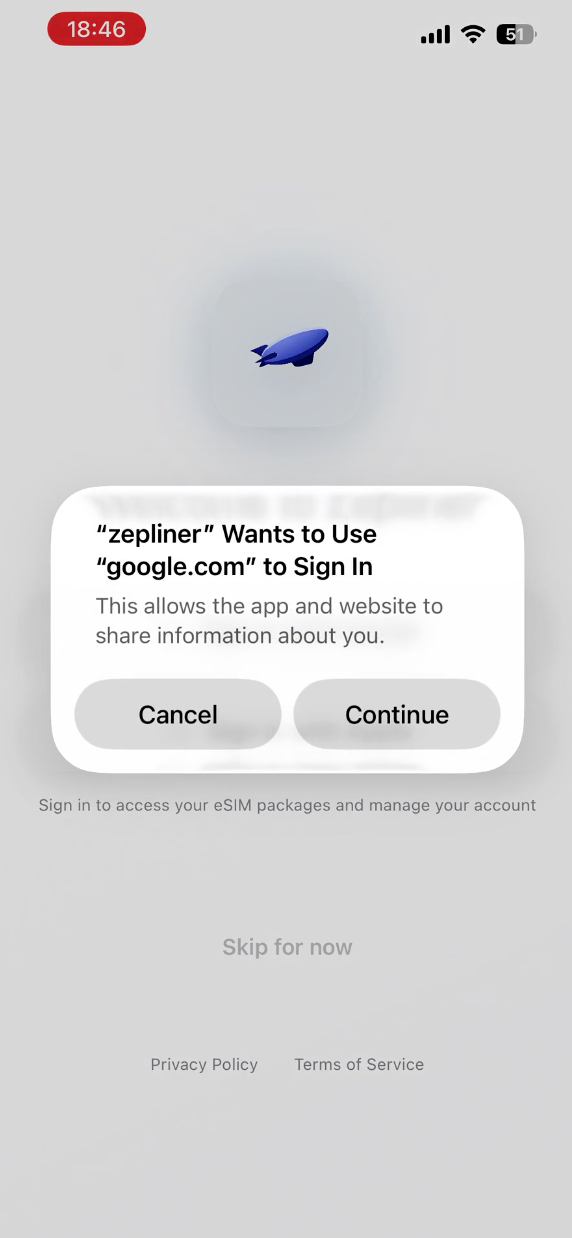 Tap Continue on the prompt
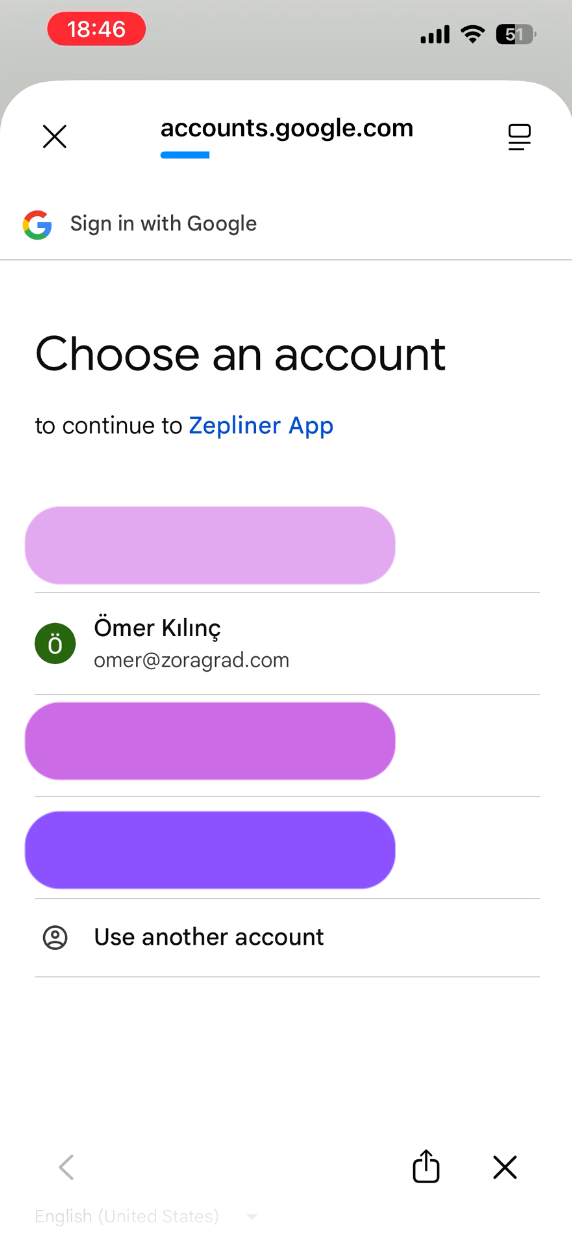 Choose your Google account
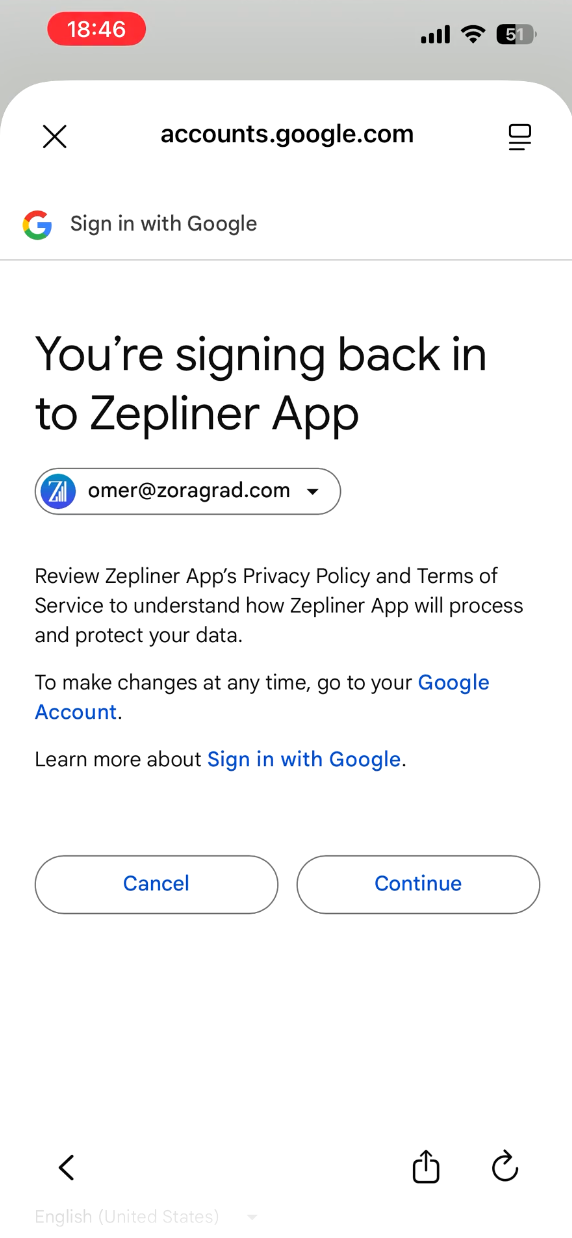 Confirm sign-in
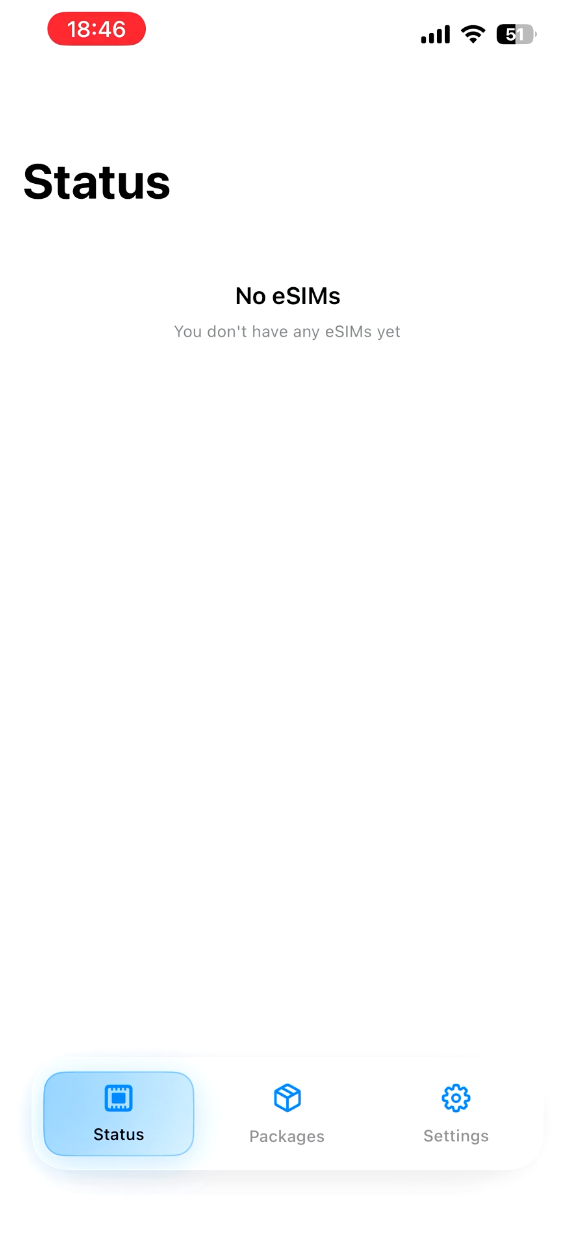 You are now signed in
Add a coupon
If you have a promo code from your travel group or organizer, add it before purchasing a package to get your discount.
- Go to the Settings tab at the bottom.
- Tap Manage Coupons.
- On the Promo Codes screen, type your code into the Enter code field.
- Tap Add.
- Your coupon will appear under My Coupons and will be applied automatically at checkout.
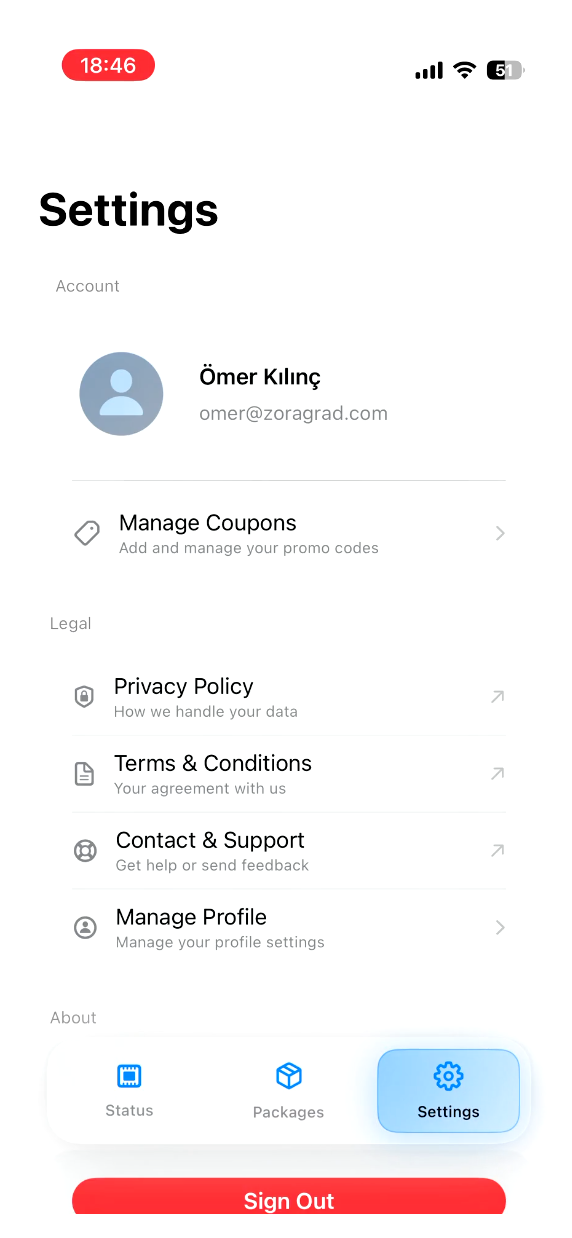 Go to Settings tab
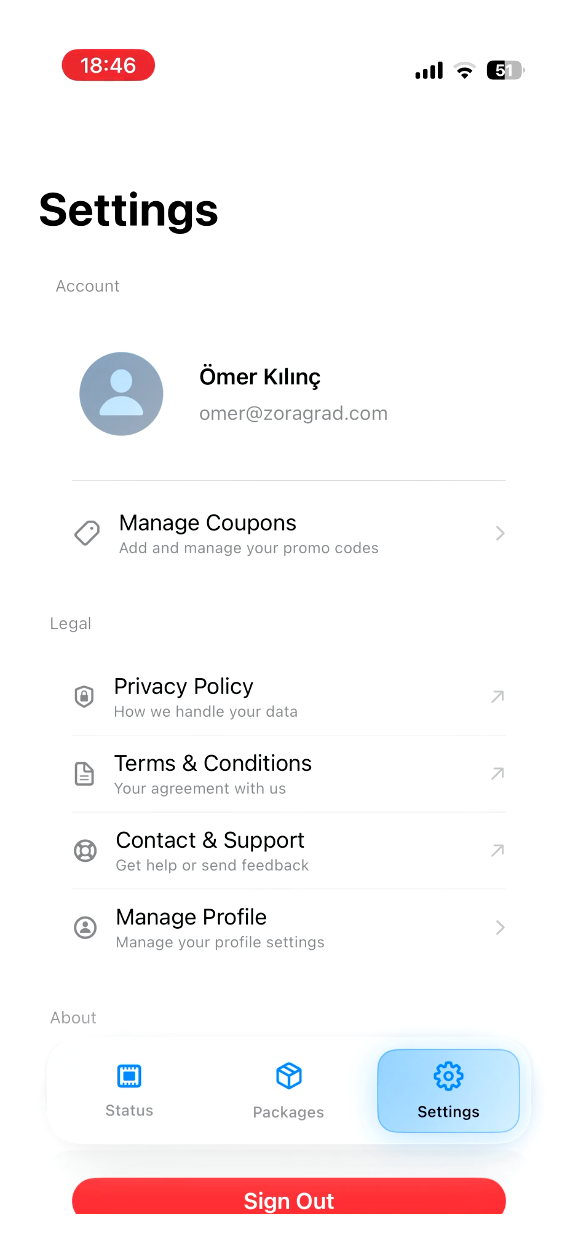 Tap Manage Coupons
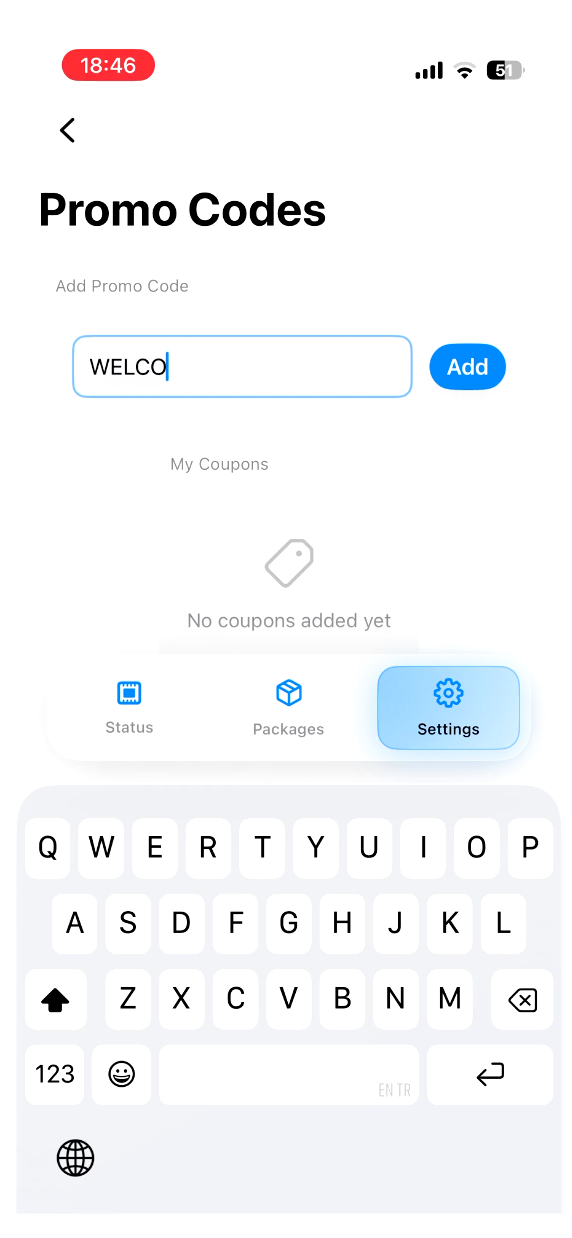 Enter your promo code
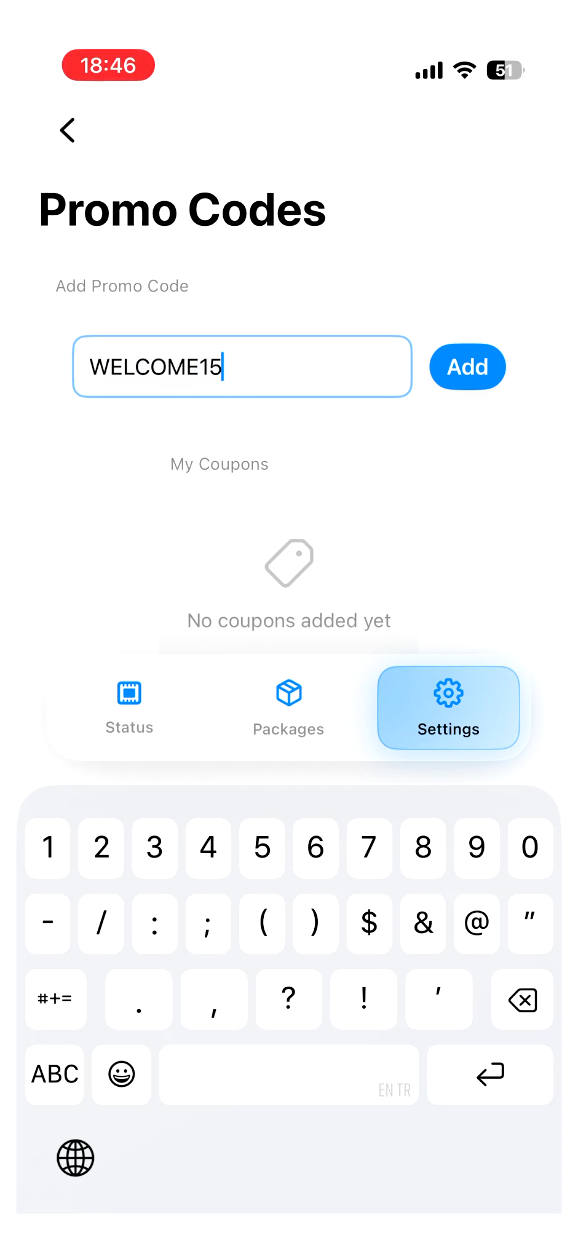 Finish entering the code
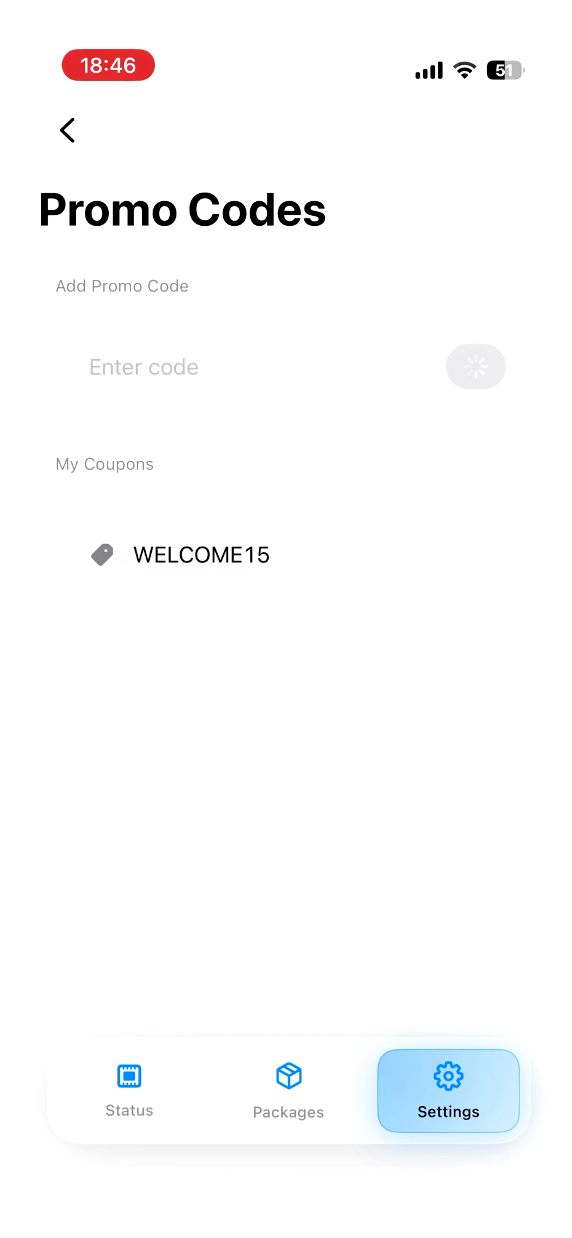 Coupon successfully added
Purchase a package
Browse available destinations and choose a data package that suits your trip.
- Go to the Packages tab at the bottom.
- Browse or search for your destination country.
- Tap the country to see available packages.
- Tap the price button on the package you want.
- If you have a coupon, select it from the coupon picker to apply your discount.
- Tap Continue to complete the purchase.
After a successful purchase, a confirmation will appear and your eSIM will be ready in the Status tab.
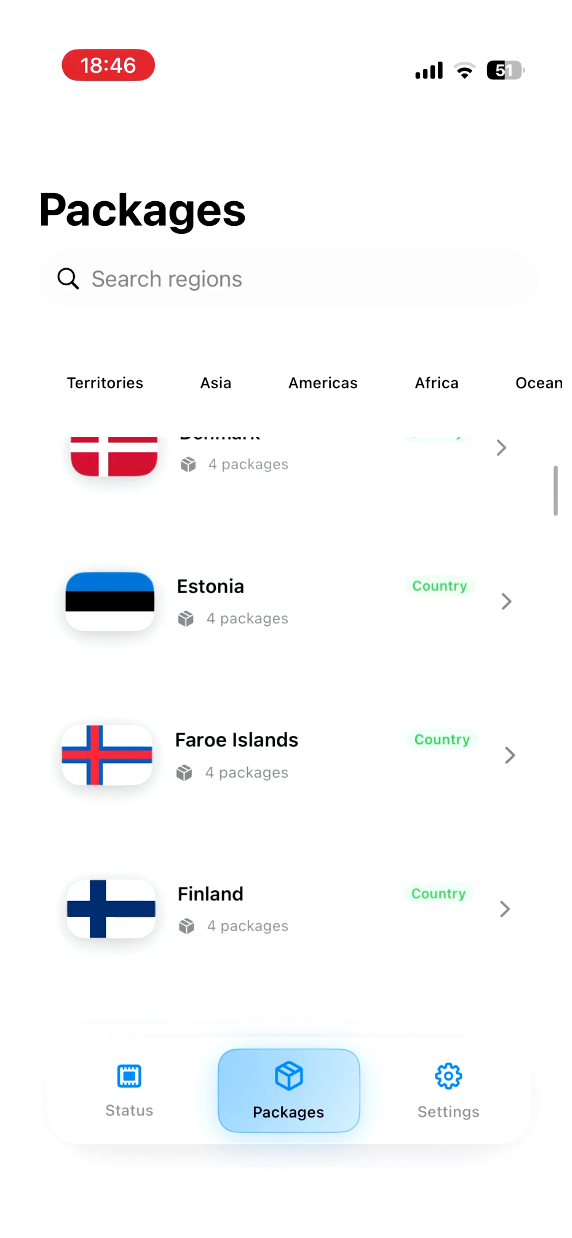 Browse destinations in Packages
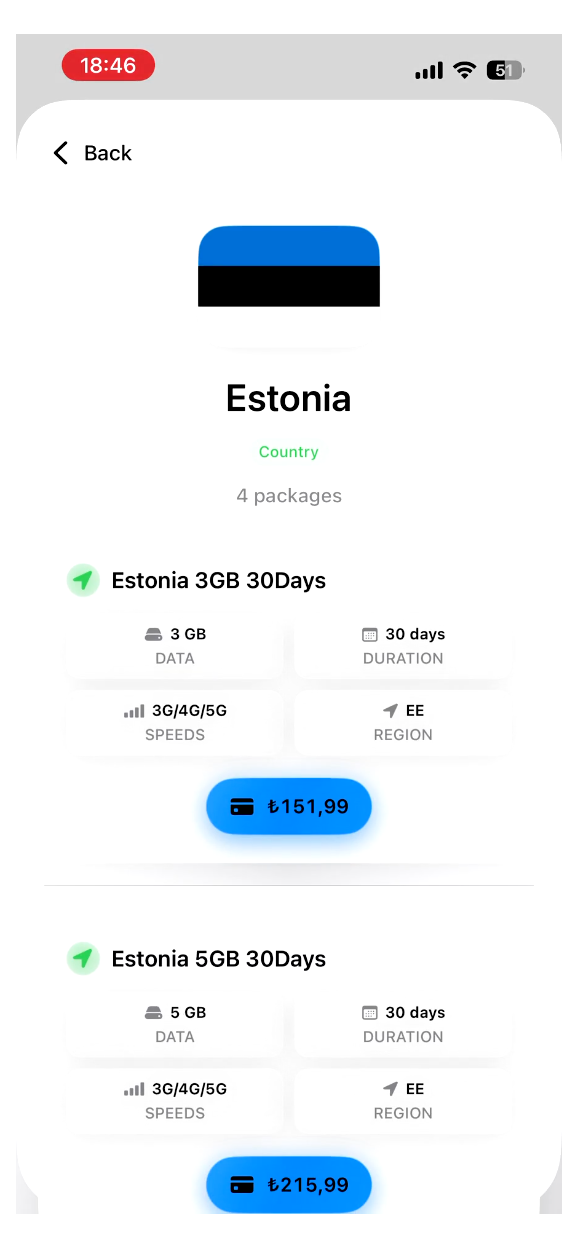 View available packages for a country
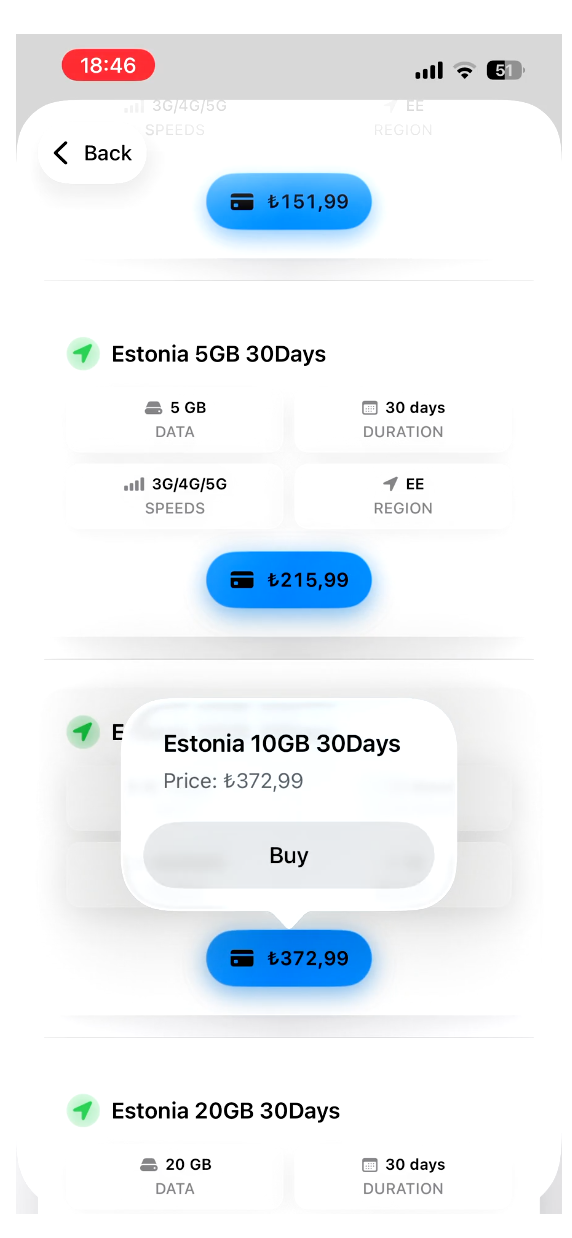 Tap the price to buy
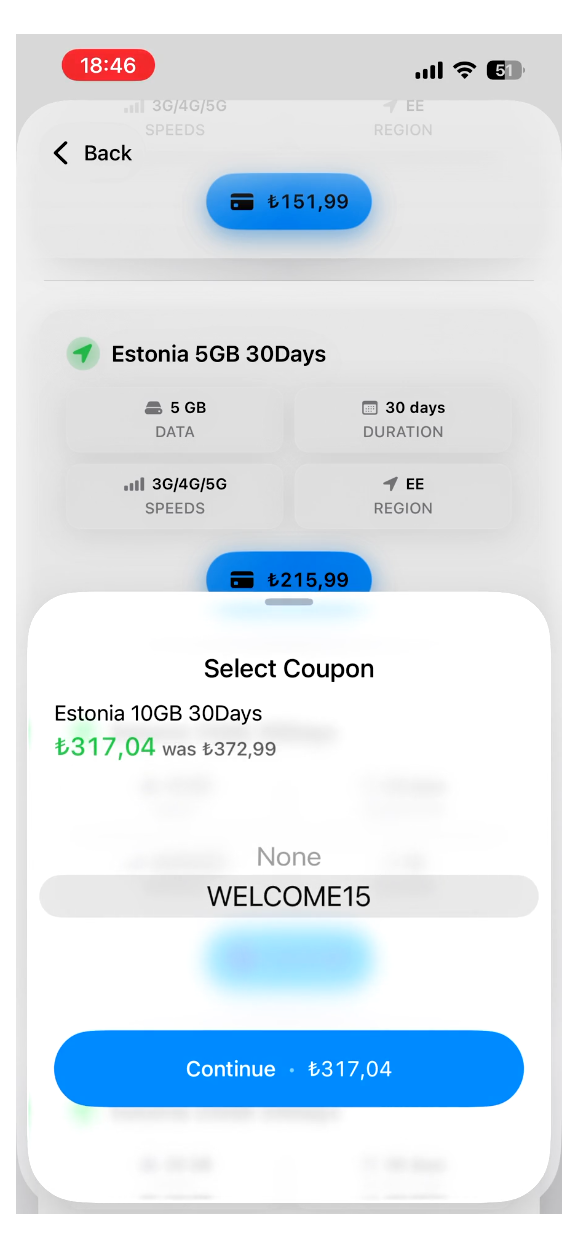 Select your coupon for a discount
Install the eSIM
Install the eSIM while you still have a stable Wi-Fi connection. Your iPhone needs internet access to download and add the eSIM profile, so doing this before you travel makes setup much smoother.
Before you start
Before installation, please check the following:
- Your iPhone supports eSIM
- Your iPhone is carrier-unlocked
- You are connected to a reliable Wi-Fi network
- Your battery is sufficiently charged
- Your iOS version is reasonably up to date
- Your home SIM stays inserted and active
Steps
- Open the Zepliner app and go to Status.
- Tap the eSIM you purchased — it will show Ready to Install.
- Tap Install.
- Your iPhone will open the eSIM activation flow. Tap Activate when prompted.
- Wait while the eSIM connects to the carrier.
- When asked "Where will you use this eSIM?", select Abroad and tap Continue.
- When asked "Which type of plan do you have?", select Data Only and tap Continue.
- The setup will complete with a "Travel eSIM Setup Complete" message. Tap Done.
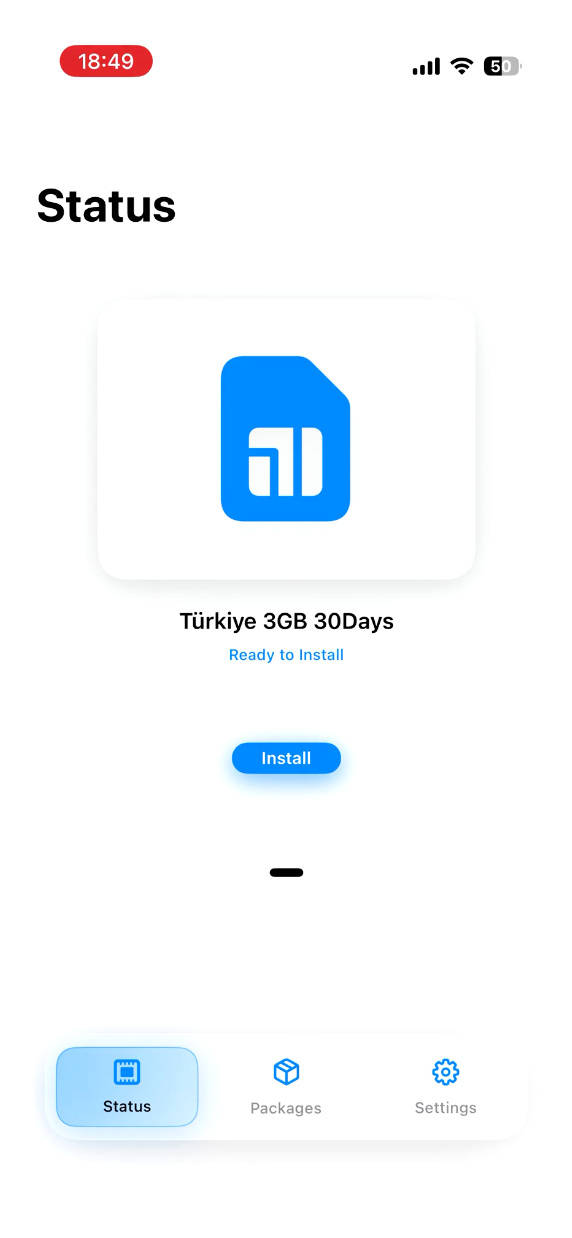 eSIM ready to install in Status
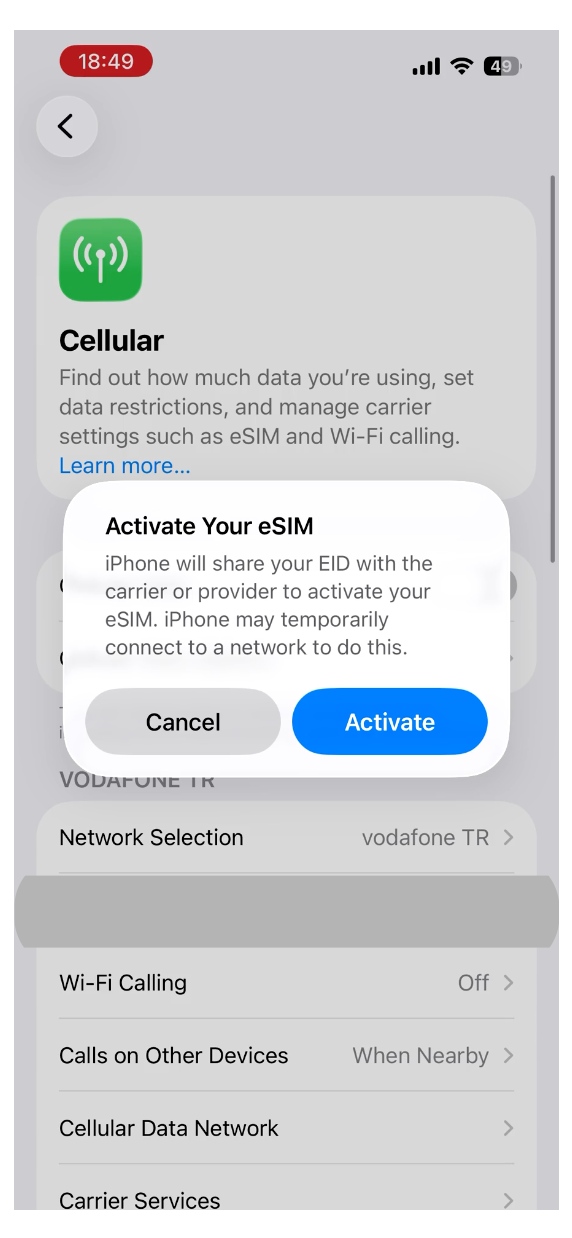 Tap Activate on the system prompt
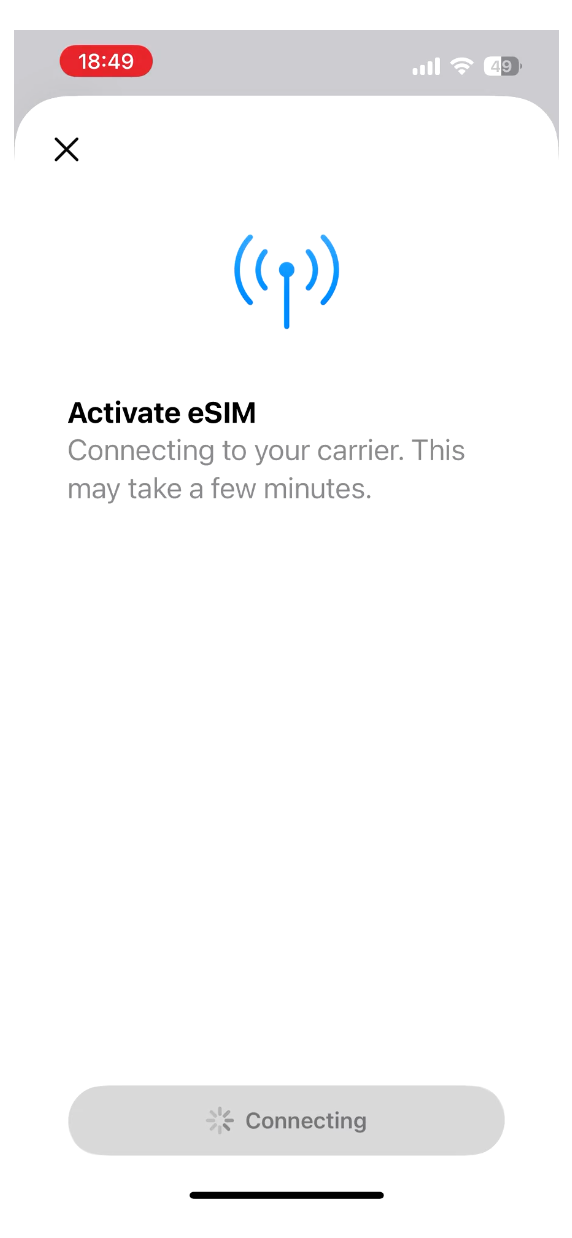 Connecting to carrier
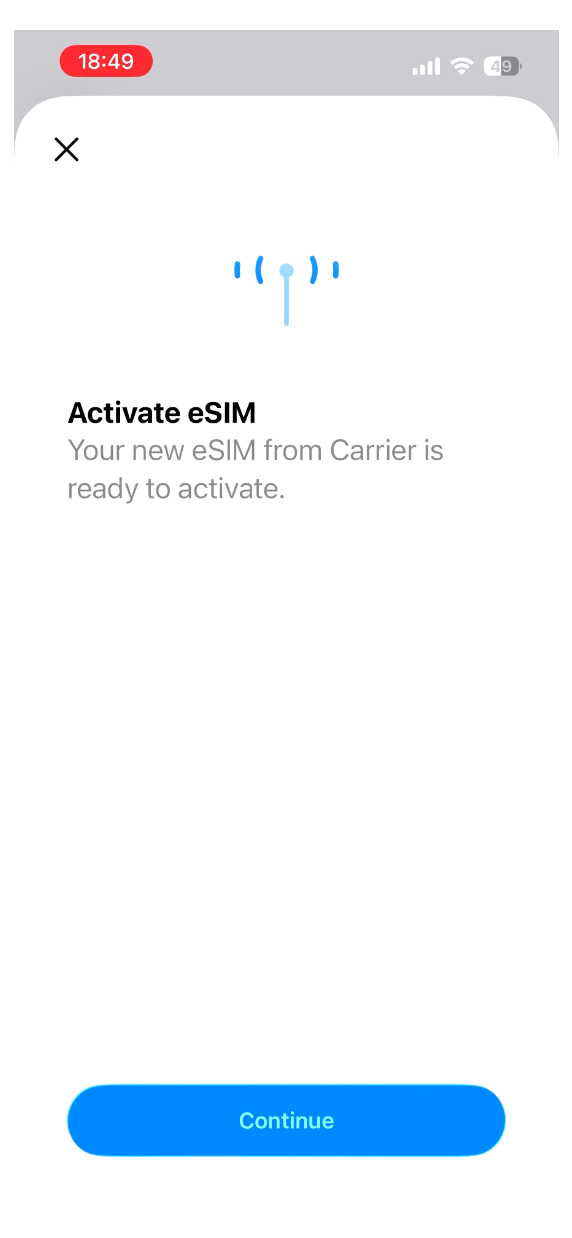 eSIM ready to activate
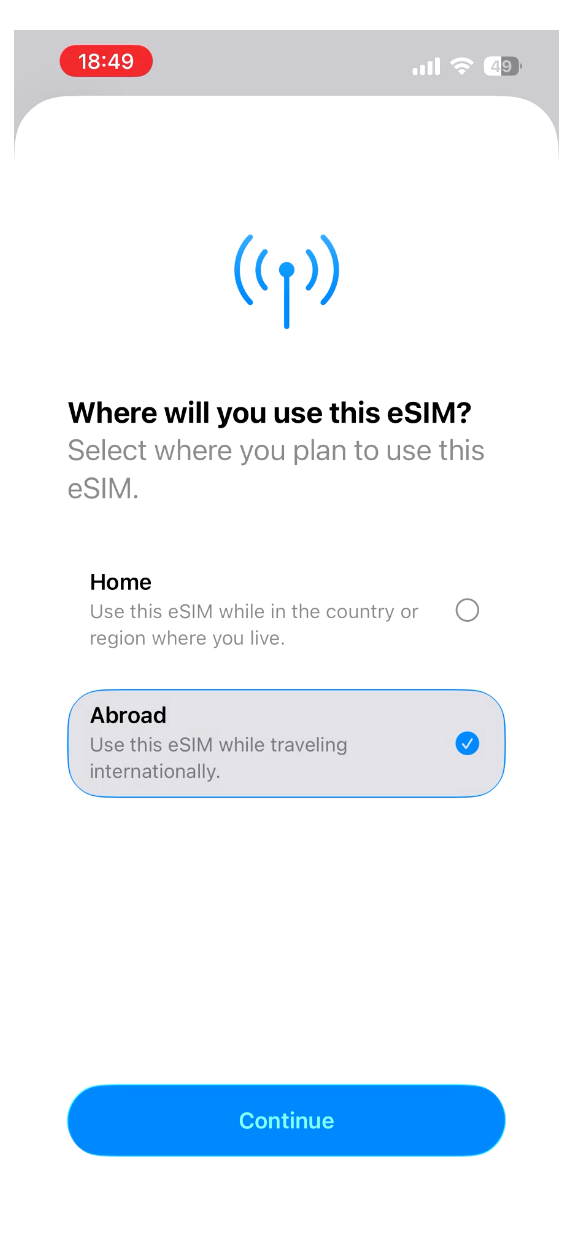 Select Abroad
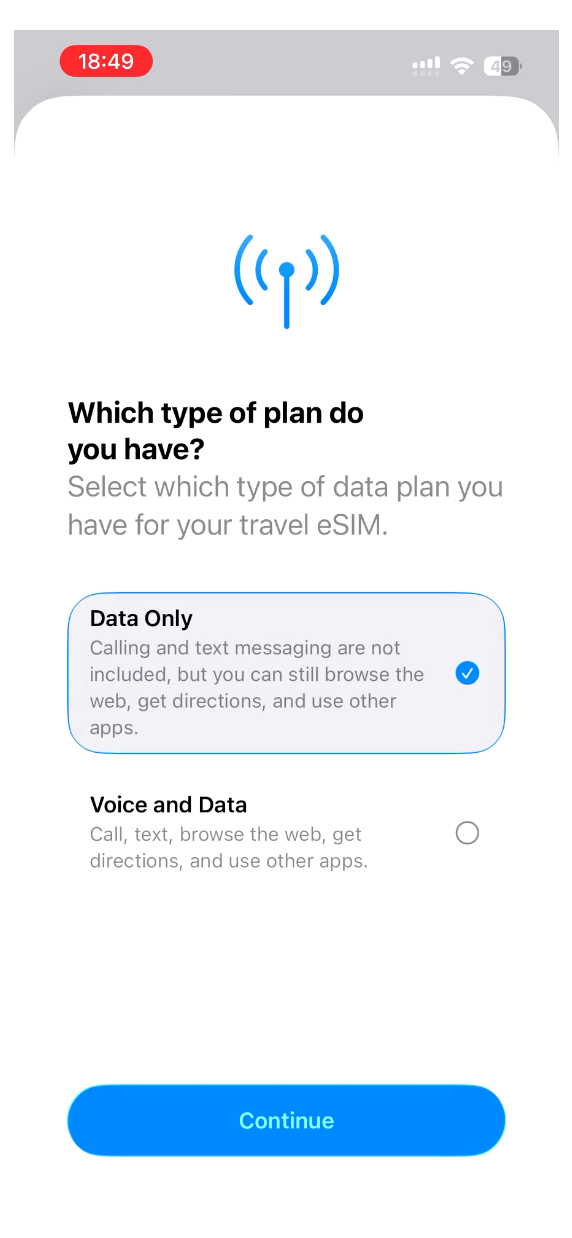 Select Data Only
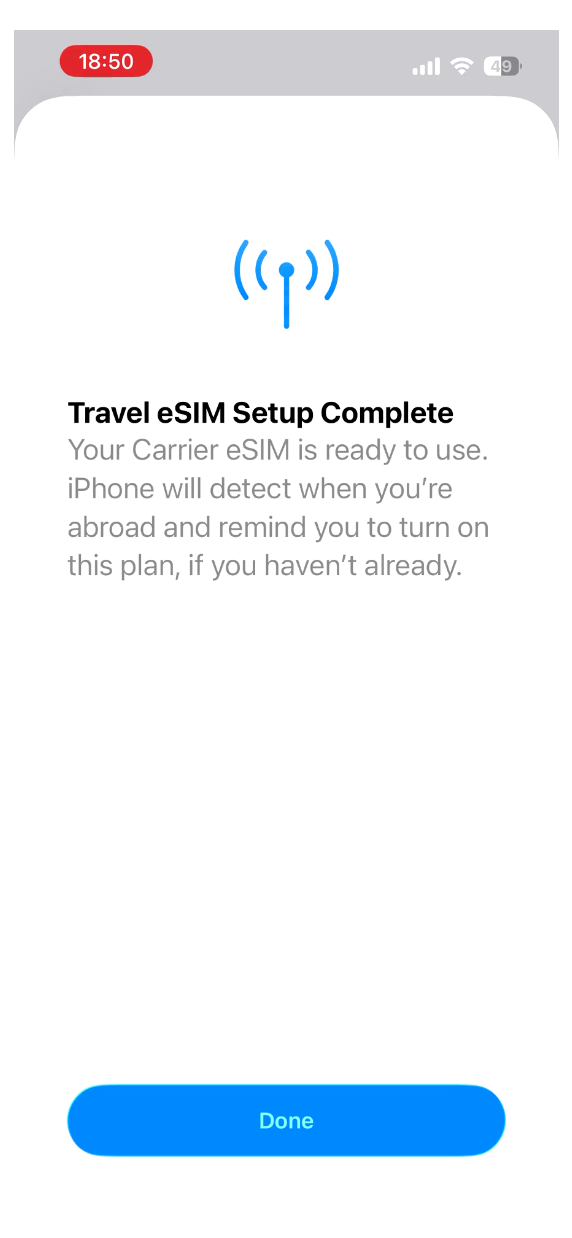 Setup complete
During installation
- Keep your phone unlocked
- Stay on the setup screen until the process finishes
- Avoid closing the app or switching networks
In many cases, the eSIM is successfully installed but will only begin working once your device reaches the supported destination.
Activate the eSIM
When you arrive at your destination, activate the eSIM by adjusting your mobile settings. This section shows exactly which settings to change.
Turn on the eSIM line
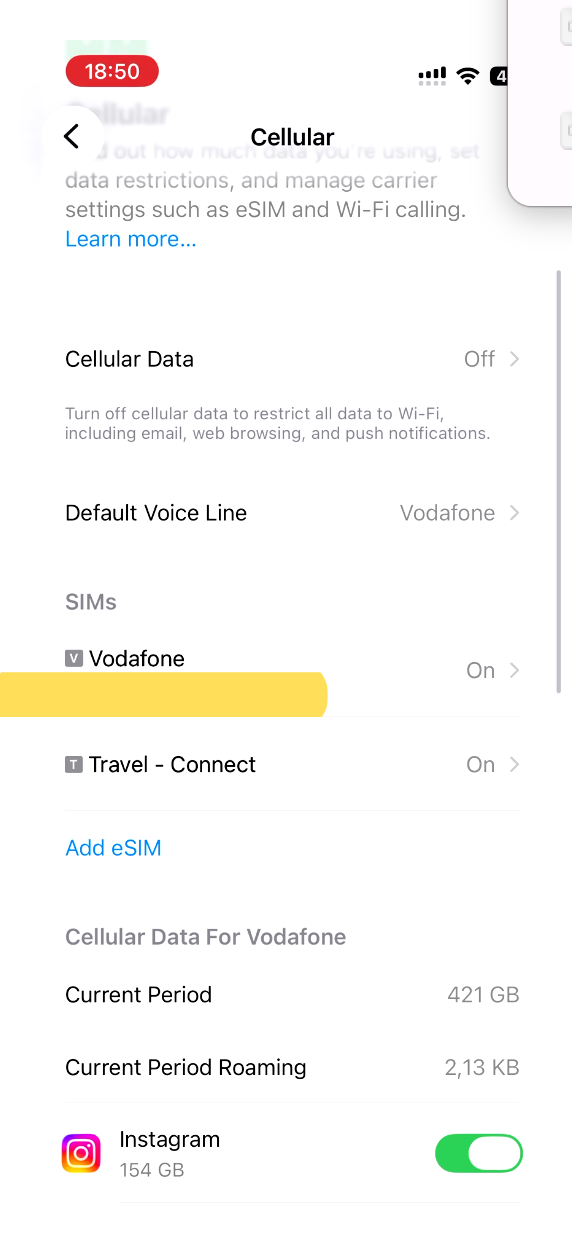
- Open your iPhone's Settings → Cellular.
- Under SIMs, you will see your home SIM (e.g. Vodafone) and the new travel eSIM (e.g. "Travel - Connect").
- Tap on the travel eSIM line.
- Toggle Turn On This Line to ON.
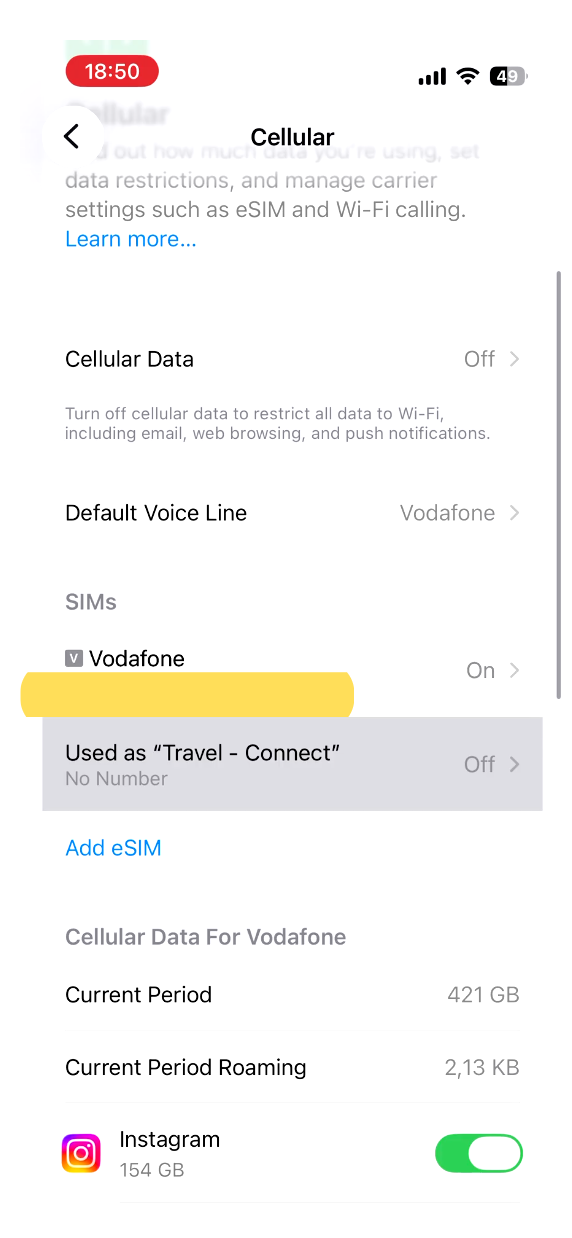 Cellular settings showing both SIMs
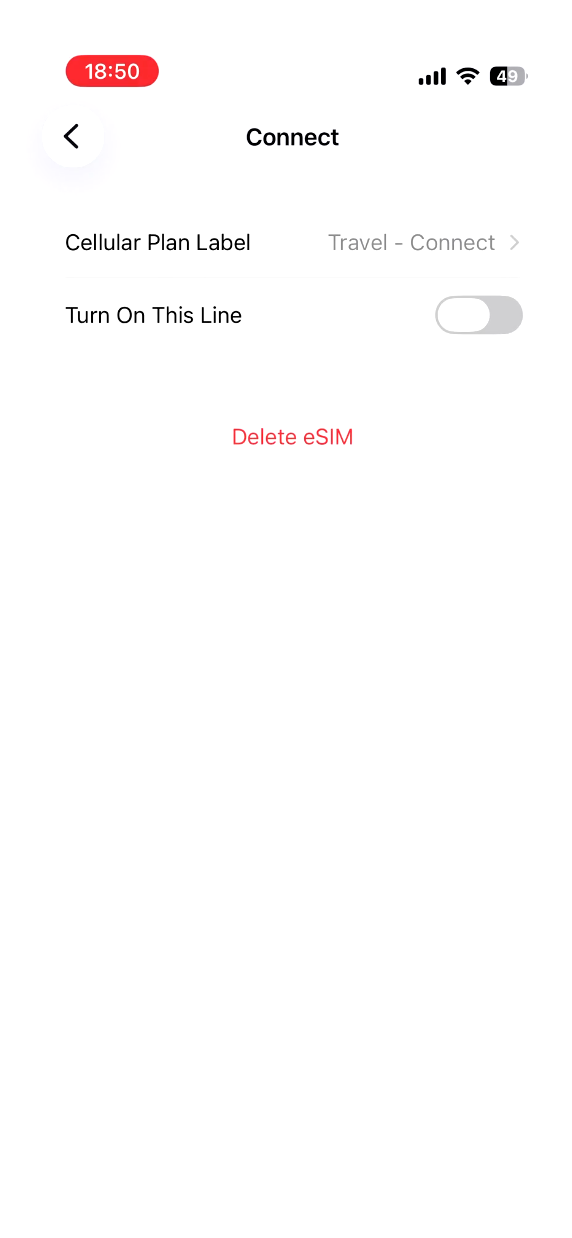 Travel eSIM line is off
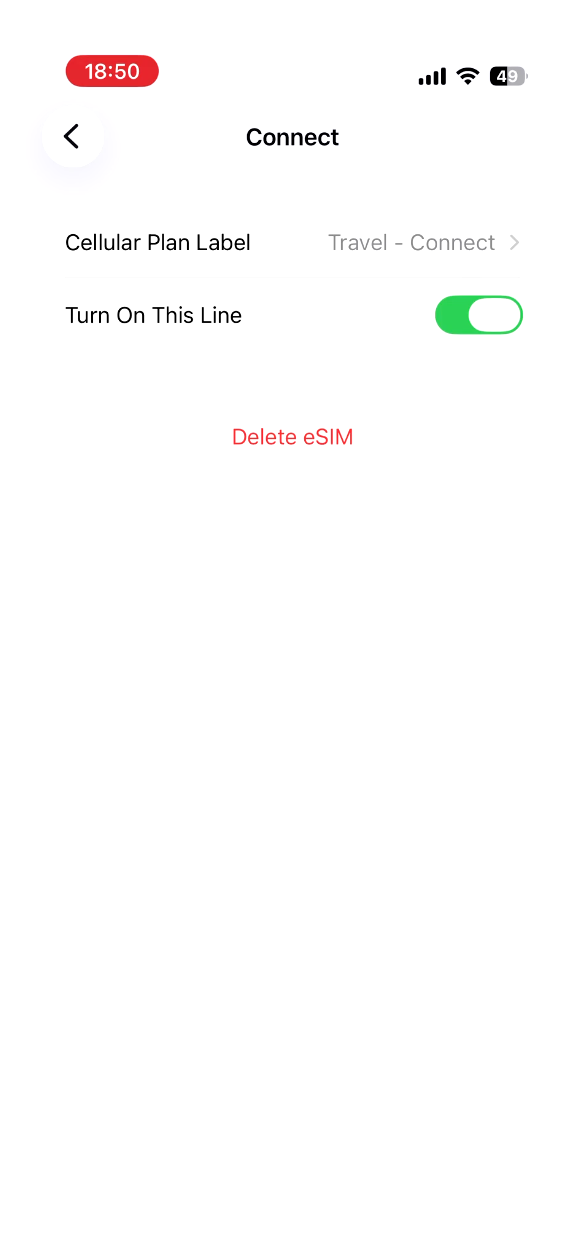 Turn on the travel eSIM line
 Both SIMs now active
Enable data roaming
- While on the travel eSIM's settings page, scroll down.
- Find Data Roaming and turn it ON.
This is essential — without data roaming enabled, the eSIM will not connect to local networks.
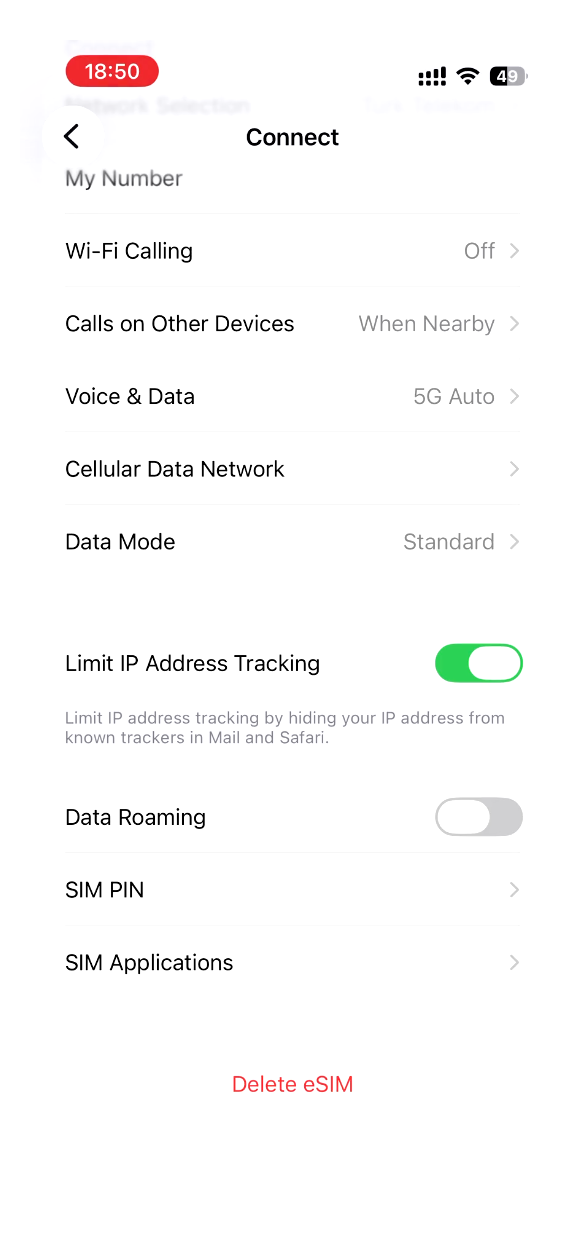 eSIM details showing Data Roaming off
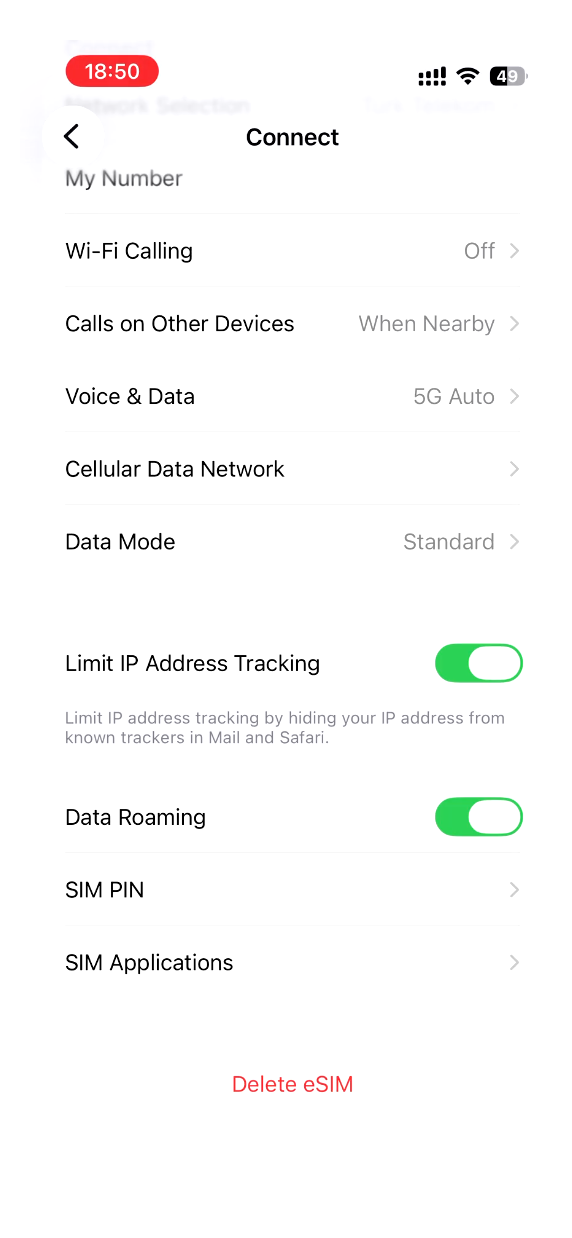 Data Roaming turned on
Set as mobile data line
- Go back to Settings → Cellular.
- Tap Cellular Data at the top.
- Select the travel eSIM line (e.g. "Travel - Connect") as your data line.
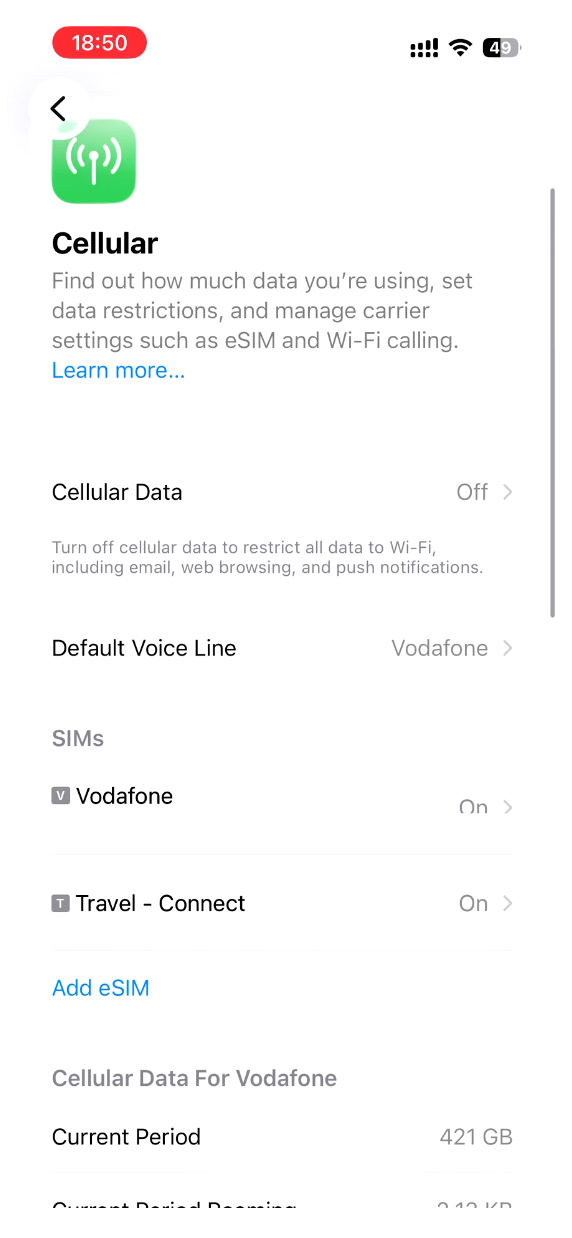 Cellular overview
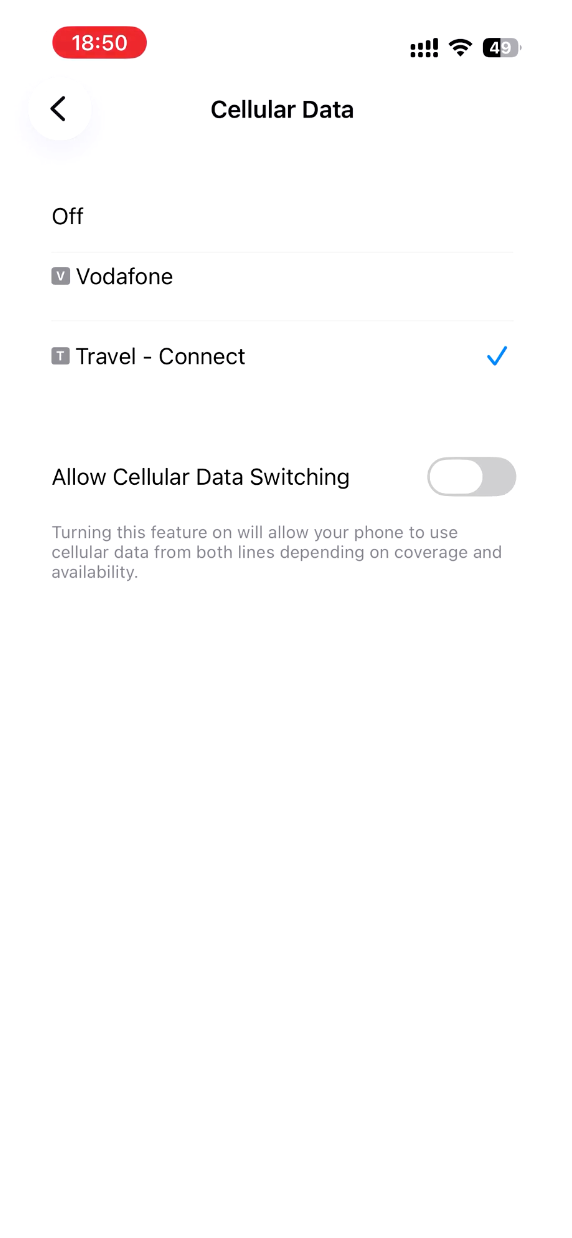 Select Travel - Connect as cellular data
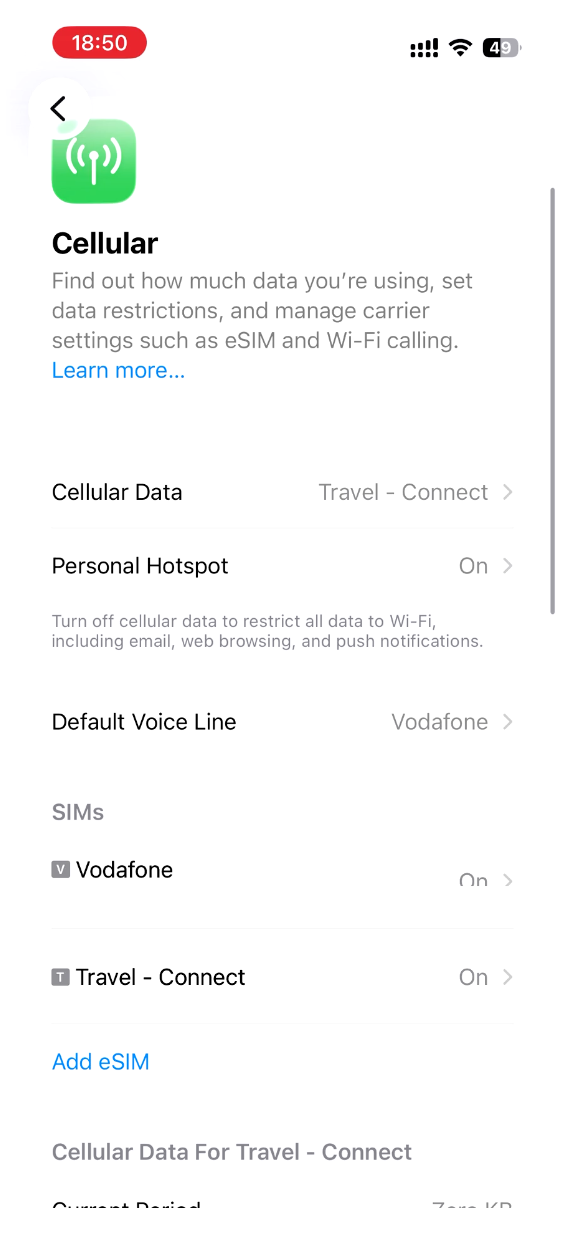 Data line is now active on travel eSIM
Verify the connection
After setting everything up, check your Control Center for confirmation:
- Swipe down from the top-right corner to open Control Center.
- You should see both carrier names (e.g. "Turk Telekom" and "vodafone TR").
- If the connection does not appear immediately, toggle Airplane Mode on for 10 seconds, then off.
- Wait for the network to register — you may see 5G or LTE appear.
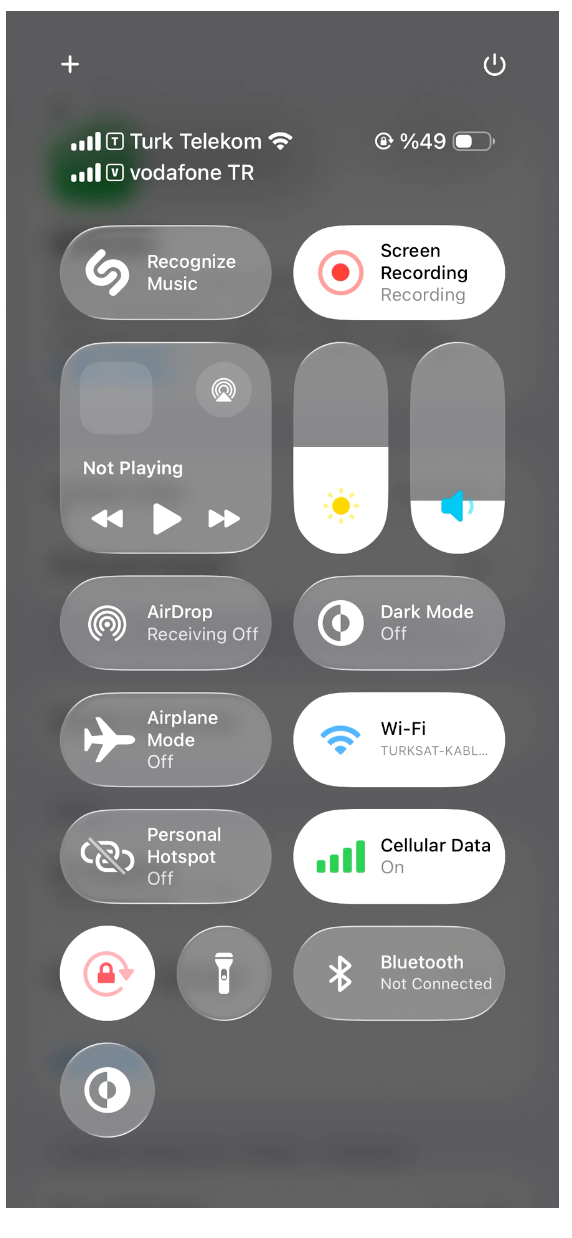 Control Center showing dual carriers
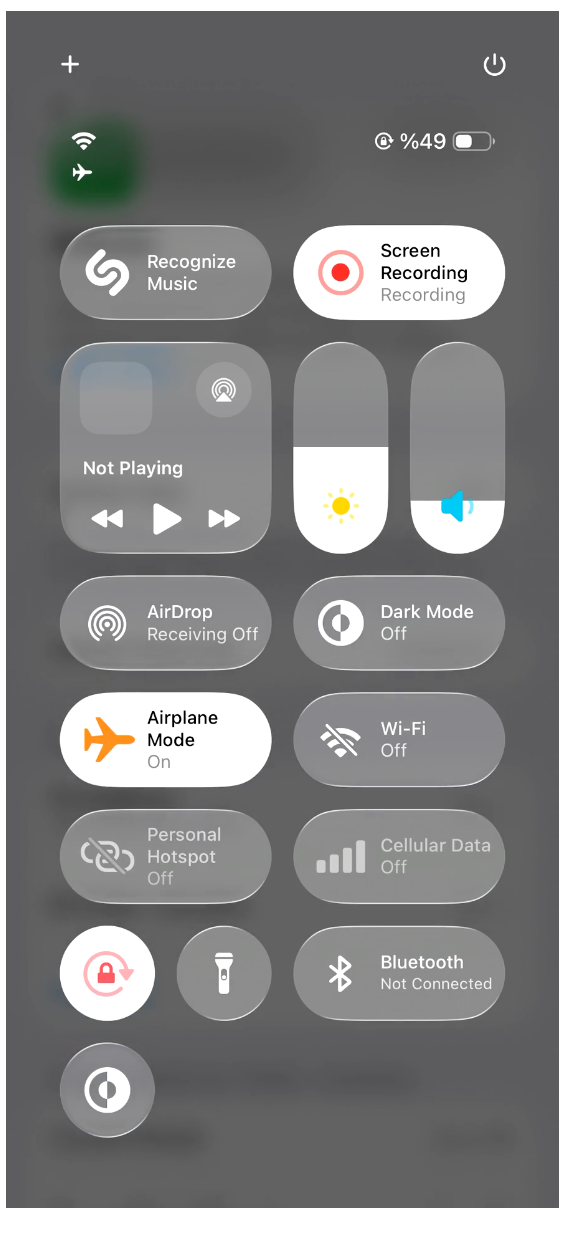 Toggle Airplane Mode briefly
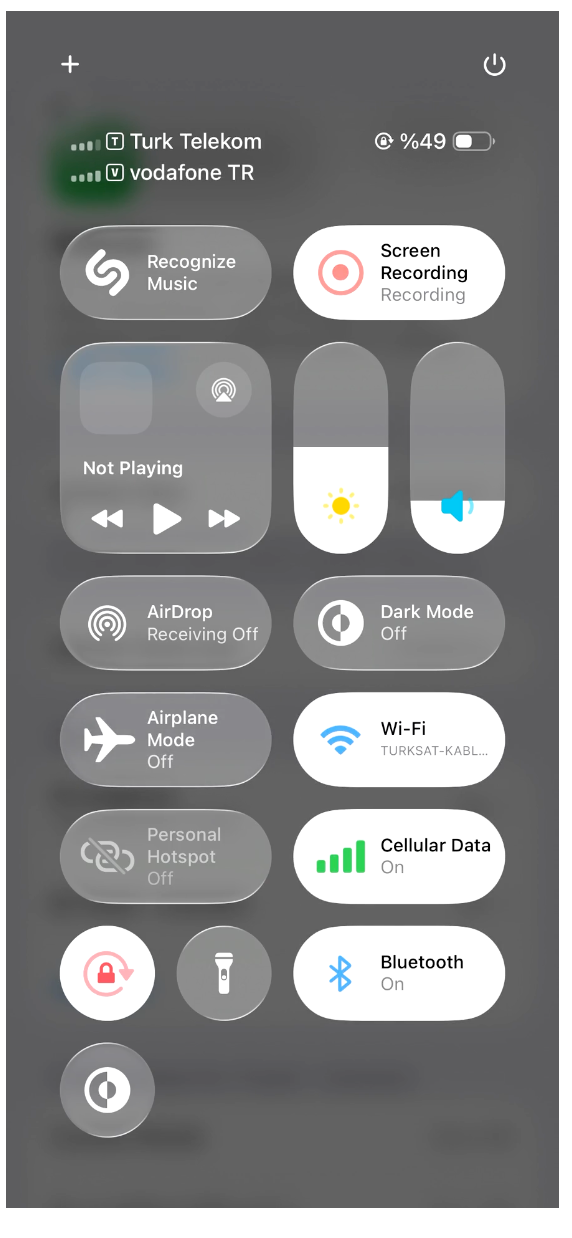 Connection restored
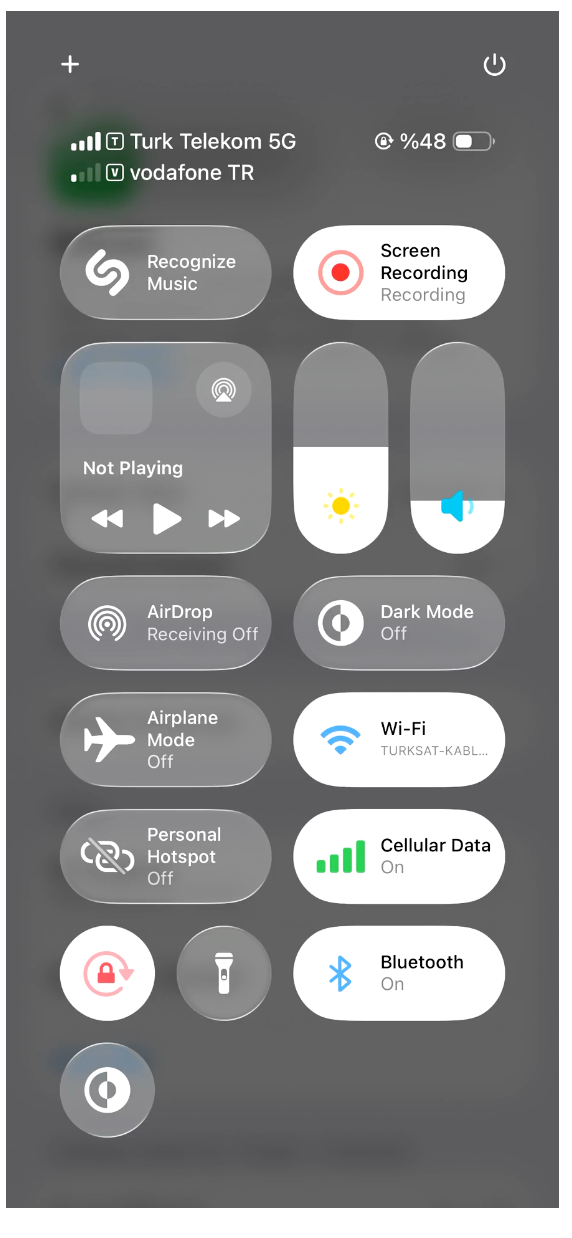 5G connection established
Once connected, your eSIM status in the Zepliner app will show Active with your data balance and validity.
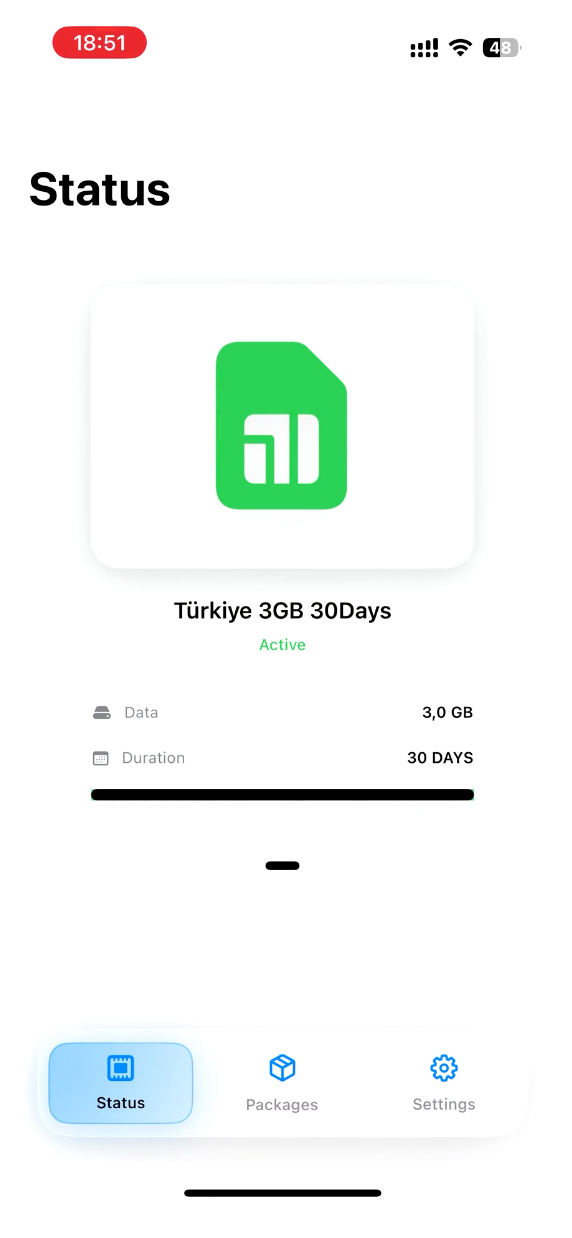 Active eSIM in the Zepliner app
Recommended setup
For the most reliable experience after arrival:
- Home SIM for calls or SMS if needed
- Zepliner eSIM for mobile data
- Data Roaming ON for the Zepliner eSIM
- Data Roaming OFF for your home SIM
Troubleshooting
No data
If your phone shows signal but the internet is not working:
- Make sure Mobile Data is set to the Zepliner eSIM
- Make sure Data Roaming is turned ON for the Zepliner eSIM
- Wait 1–2 minutes for network registration
- Toggle Airplane Mode on for 10 seconds, then turn it off
- Restart the phone if needed
No service
If the eSIM is installed but your phone shows No Service, Searching, or does not connect:
- Confirm that you are already in the supported destination
- Wait a minute or two for the device to register
- Toggle Airplane Mode for 10 seconds
- Restart your device
- Make sure the Zepliner line is enabled in your phone settings
eSIM installed but not working yet
This usually means one of the following:
- You have not yet arrived in the supported country or region
- Your phone is still using your home SIM for mobile data
- Roaming is not enabled on the Zepliner eSIM
- The device needs a quick refresh through Airplane Mode or a restart
Slow connection
Connection quality can vary depending on signal strength, local carrier coverage, congestion, and indoor conditions.
If speeds seem poor:
- Move to an open area if possible
- Toggle Airplane Mode
- Wait a few minutes
- Restart the phone
Still need help?
If you are still having trouble, please visit Support.
When contacting us, include:
- Your destination
- Your device model (e.g. iPhone 15 Pro)
- A short description of the issue
- What you already tried
- Screenshots if possible
This helps us identify the issue much faster and guide you more accurately.